Help

RSN App Guide

Everything the RSN app does, step by step: signing in, logging your workouts, changing your plan, talking to RSN, and nutrition coaching. The app is for RSN clients and comes with every coaching plan.

Open the app FAQ

Written for RSN app 1.12 · Updated November 2026 · Screens show a sample client

Contents

Contents

  1. Getting started
    1. Open the app
    2. Sign in with a code
    3. Add it to your Home Screen
    4. Workouts, Nutrition, or both
    5. App updates
    6. Settings
  2. Doing your workouts
    1. Your Today screen
    2. Start a workout
    3. Log each set
    4. Move between exercises
    5. Finish your workout
    6. Supersets
    7. The finisher
    8. Daily steps
    9. Cardio
  3. Changing a workout
    1. Change a workout without starting it
    2. Add an exercise or cardio during a workout
    3. Remove or swap an exercise
    4. See your changes on My Plan
    5. Go back to RSN’s plan
    6. Add a workout day of your own
    7. Change how an exercise is logged
    8. Assist machines
    9. Your rest timer
  4. History and Progress
    1. Fix a past workout in History
    2. Progress
  5. Talking to RSN
    1. Messages
    2. Notes with a workout
    3. Replies and weekly notes
    4. Check-in calls
  6. Nutrition coaching
    1. Week 1: your starting point
    2. Log your food in MyFitnessPal
    3. Your habits
    4. Water
    5. How did your meals sit?
    6. Weigh-ins
    7. Wrap up your day
    8. Your weekly check-in
    9. RSN’s note and your week review
    10. Your targets and MyFitnessPal goals
    11. Progress and History
  7. Good to know
    1. Quick answers

Getting started

Open the app, sign in, and put it on your Home Screen. About 2 minutes, first time only.

Open the app

RSN isn’t in the App Store or Google Play. On your phone, open Safari (iPhone) or Chrome (Android) and go to renewedstrengthnutrition.com/app, or tap Client login at the bottom of this website.

On a computer, use the same address and bookmark it.

Sign in with a code

  1. Type the email you signed up with.
  2. Tap Email me a code.
  3. Enter the 6-digit code from your email.

There’s no password. Don’t see the code? Check your spam or junk folder, then tap Resend code. You stay signed in, and if you’re ever signed out, get a new code the same way.

Add it to your Home Screen

Stay on the app page in your browser, then:

iPhone · Safari

  1. Tap Share. On newer iPhones, tap the menu button at the left end of the address bar (or •••) first, then Share.
  2. Scroll down and tap Add to Home Screen.
  3. If you see Open as Web App, leave it on. Tap Add.

Android · Chrome

  1. Tap the ⋮ menu at the top right.
  2. Tap Add to home screen. Some phones say Install app.
  3. Choose Install, not Create shortcut.

From now on, open RSN from its new icon, not the browser. iPhones ask you to sign in once more with a new code. Can’t find the icon? Search your phone for RSN.

Workouts, Nutrition, or both

What you see depends on your plan. The personal workout program has the Workouts side, nutrition coaching has the Nutrition side, and the bundle has both.

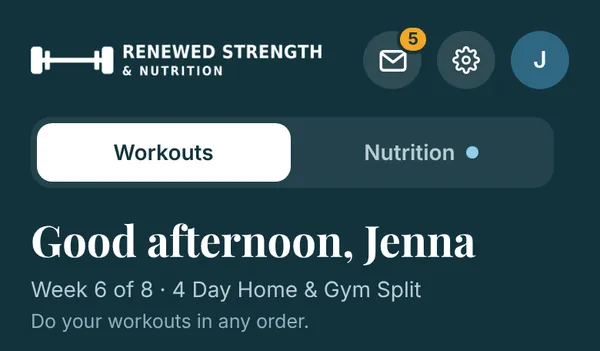
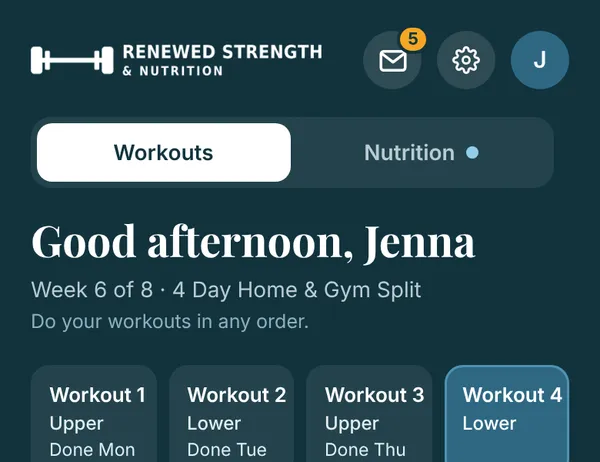
With the bundle, switch sides with Workouts | Nutrition at the top of Today. A dot on the other side means something is waiting there, like your check-in or a note from RSN.

Each side has the same four tabs at the bottom: Today, Progress, History and My Plan.

The top of Today with the Workouts and Nutrition switch

App updates

When you see A new version of the app is ready, tap Refresh. It never pops up in the middle of a workout. Tap What’s new at the bottom of Today to see what changed.

Settings

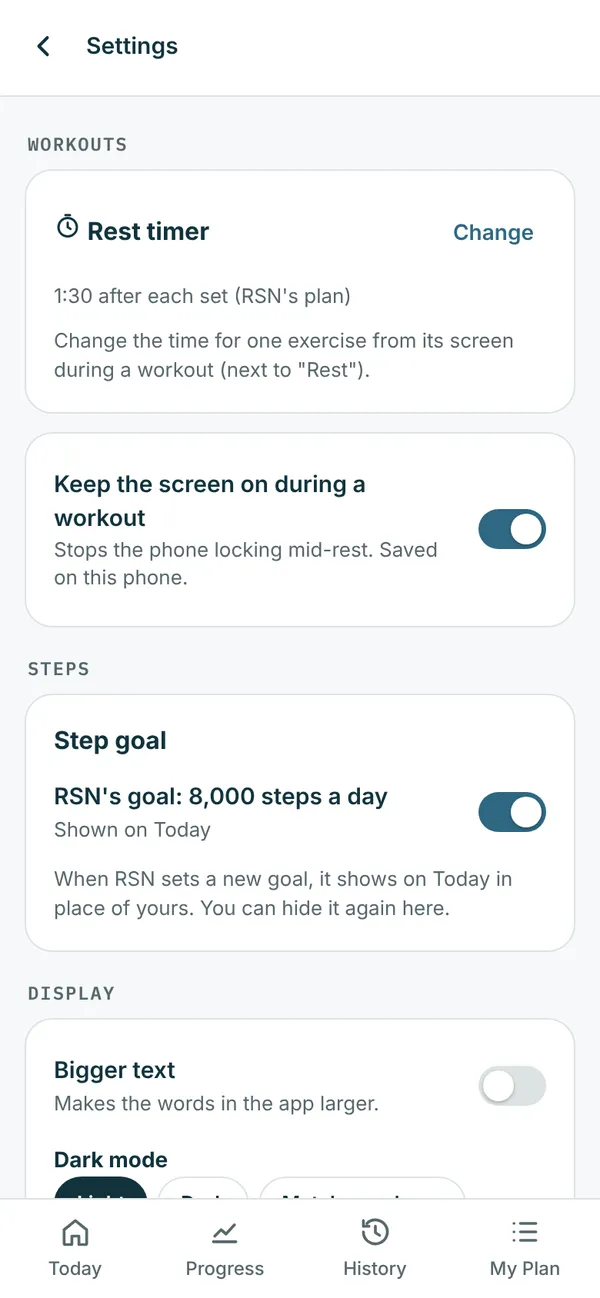
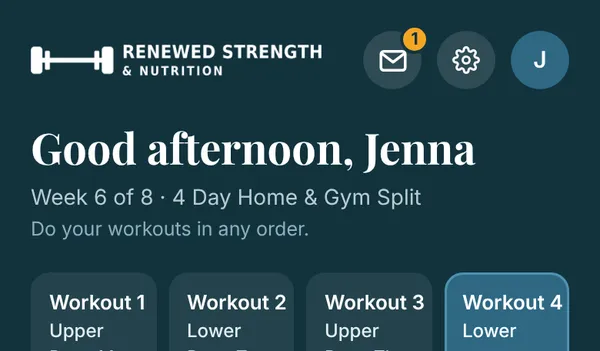
Tap the gear at the top of Today, between the envelope and your initial. Everything you can set up your way is here:

  • Workouts: your rest timer, and Keep the screen on during a workout, so your phone doesn’t lock in the middle of a rest.
  • Steps: your daily step goal (see Daily steps).
  • Display: Bigger text, and dark mode (Light, Dark or Match my phone).
  • Add the app to your Home Screen: how to do it on your phone.
  • Help & account: this guide, ways to reach RSN: 402-214-0774 (text) or email, what’s new in the app, and signing out.

Bigger text, dark mode and keeping the screen on are saved on the phone you’re holding. Using a second phone or a computer? Set them there too.

The gear at the top of Today, between the envelope and your initial
Settings: rest timer, keeping the screen on, and your step goal

Doing your workouts

Your plan from RSN, one workout at a time.

Your Today screen

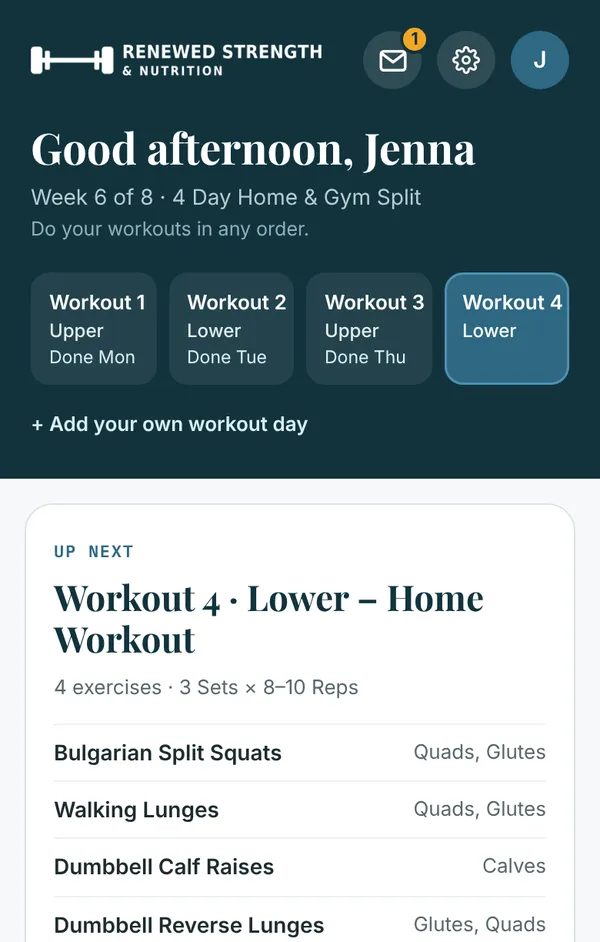
Today shows your week: one tile per workout, marked with the day once it’s done. Do them in any order. Tap a tile to see that workout.

Up next lists its exercises and the muscles each one works. Under the list, Edit workout lets you change it before you start (see Change a workout without starting it).

A workout with a Superset tag on its tile pairs exercises (see Supersets).

Today with four workout tiles and the next workout

Start a workout

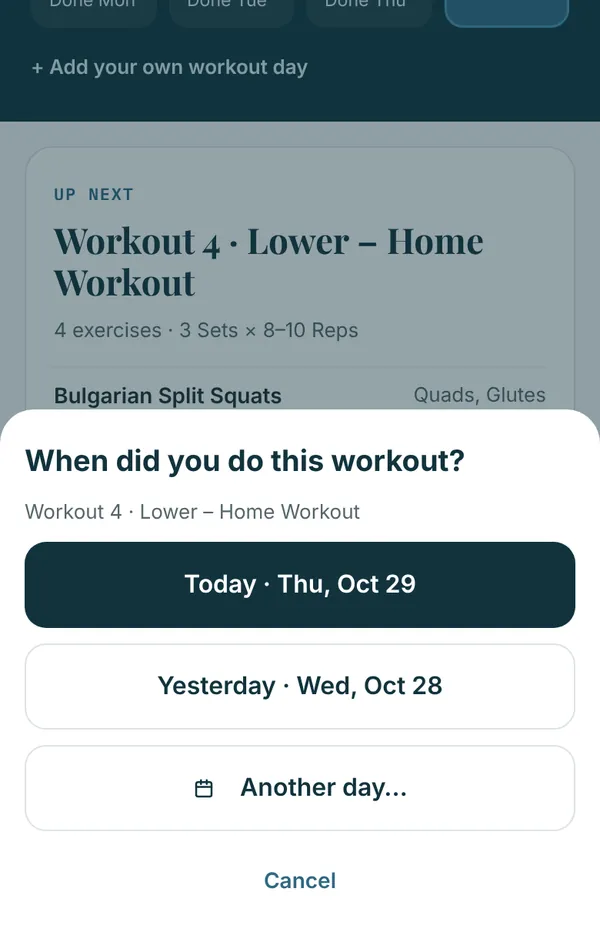
Tap Start workout, then pick when you did it: Today, Yesterday, or Another day if you’re catching up.

Choosing when you did the workout: Today, Yesterday or Another day

Log each set

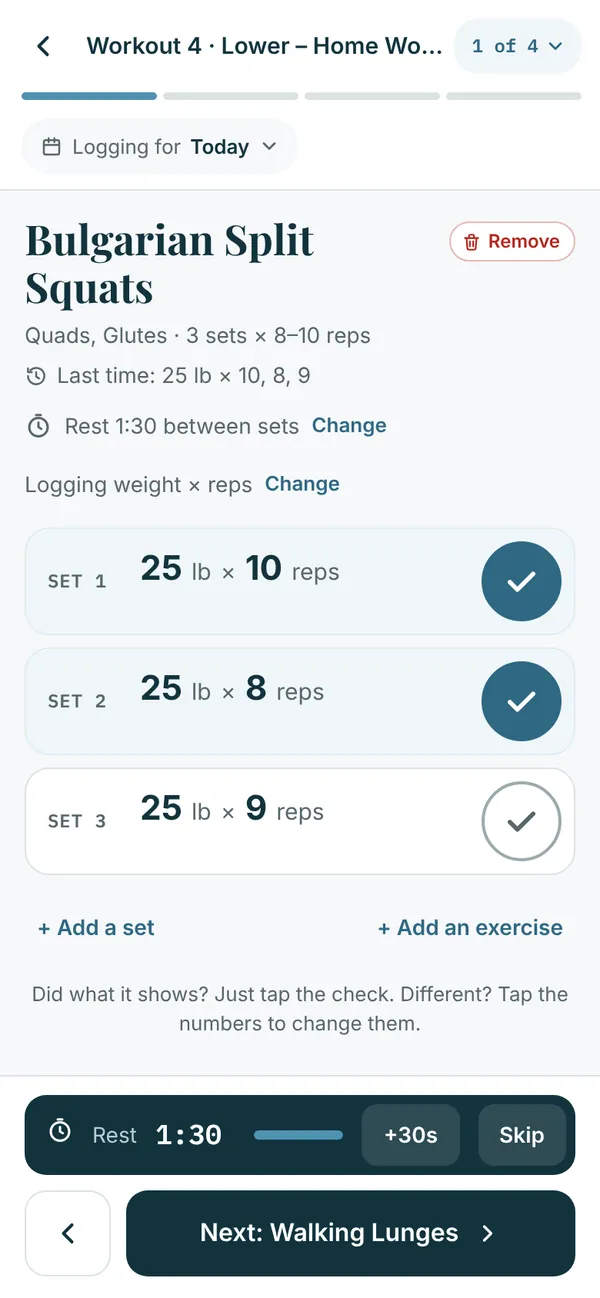
Each set is filled in from last time. Did what it shows? Tap the check. Different? Tap the numbers to change them. Change set 1 and the sets below it follow.

  • Last time shows what you did before.
  • + Add a set if you did an extra one.
  • After each set, your rest timer counts down at the bottom. +30s adds time, Skip ends it.
An exercise with two sets checked off and the rest timer running

Move between exercises

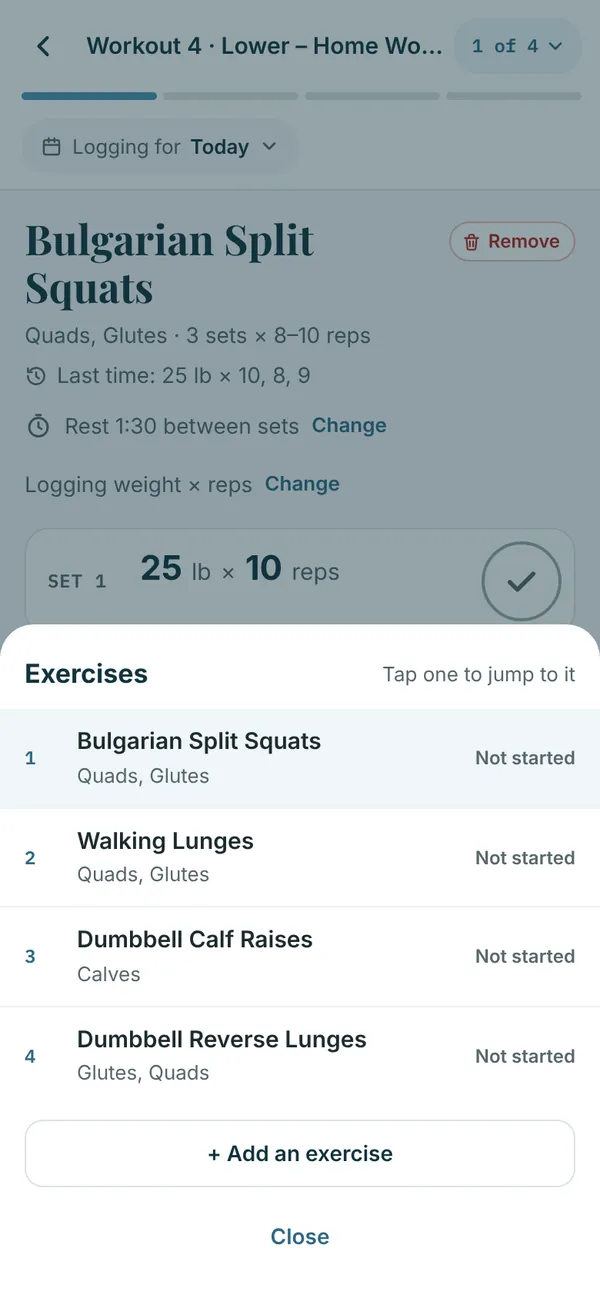
Tap Next at the bottom, or tap the counter at the top (like 1 of 4) to see the whole list and jump to any exercise, even one you’ve finished.

The list of exercises in the workout, to jump to any of them

Finish your workout

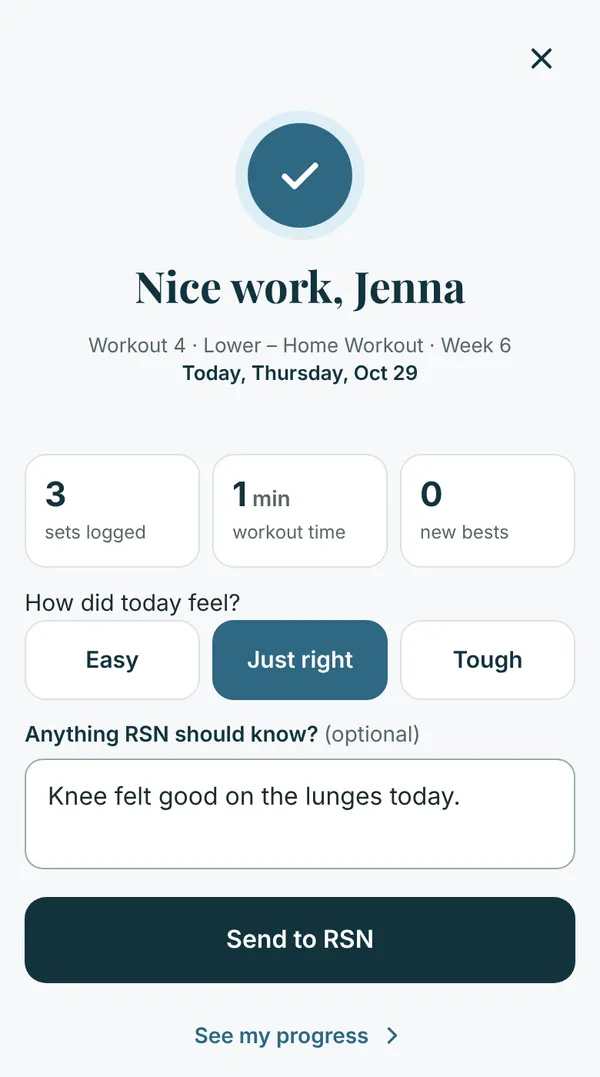
After the last exercise, tap Finish workout. Done early? Finish workout shows as soon as you’ve logged a set, and if anything isn’t checked off, the app asks before it finishes.

Then pick how it felt (Easy, Just right or Tough), add anything RSN should know, and tap Send to RSN.

Left in the middle of a workout? Nothing is lost. Today shows it as in progress, so tap Resume workout to pick up where you left off.

The finished workout summary with how it felt and a note for RSN

Supersets

In a superset workout, exercises come in pairs (sometimes three or four): 1A and 1B, 2A and 2B, and so on.

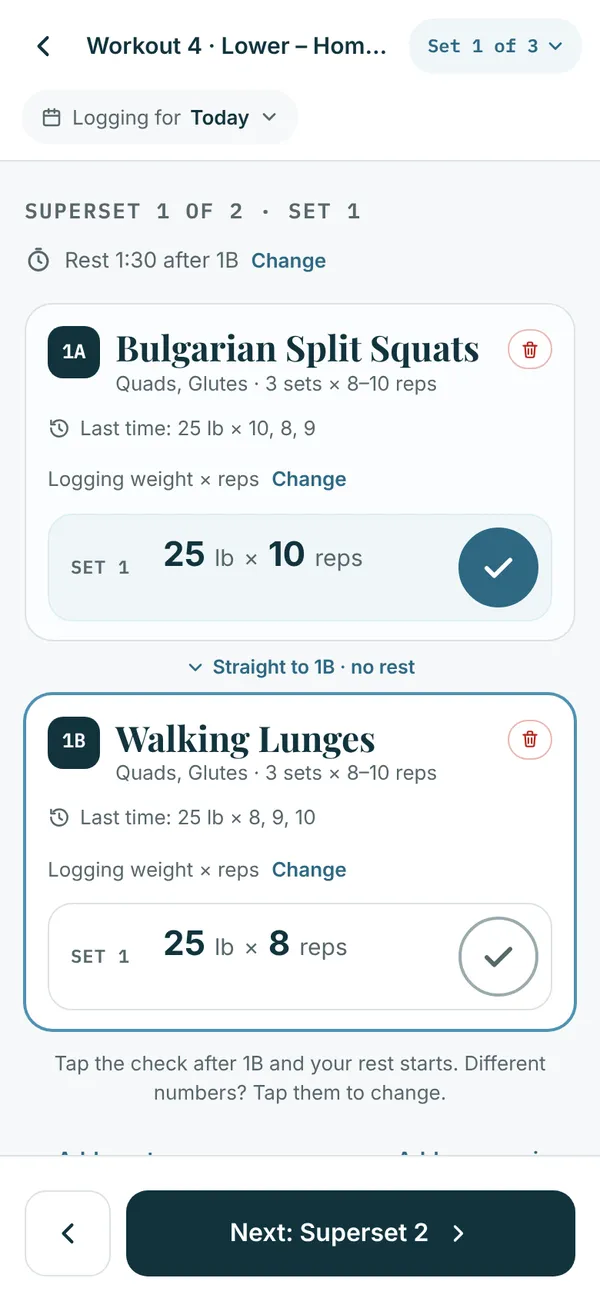
  1. Do 1A, tap its check, then go straight to 1B. There’s no rest between them.
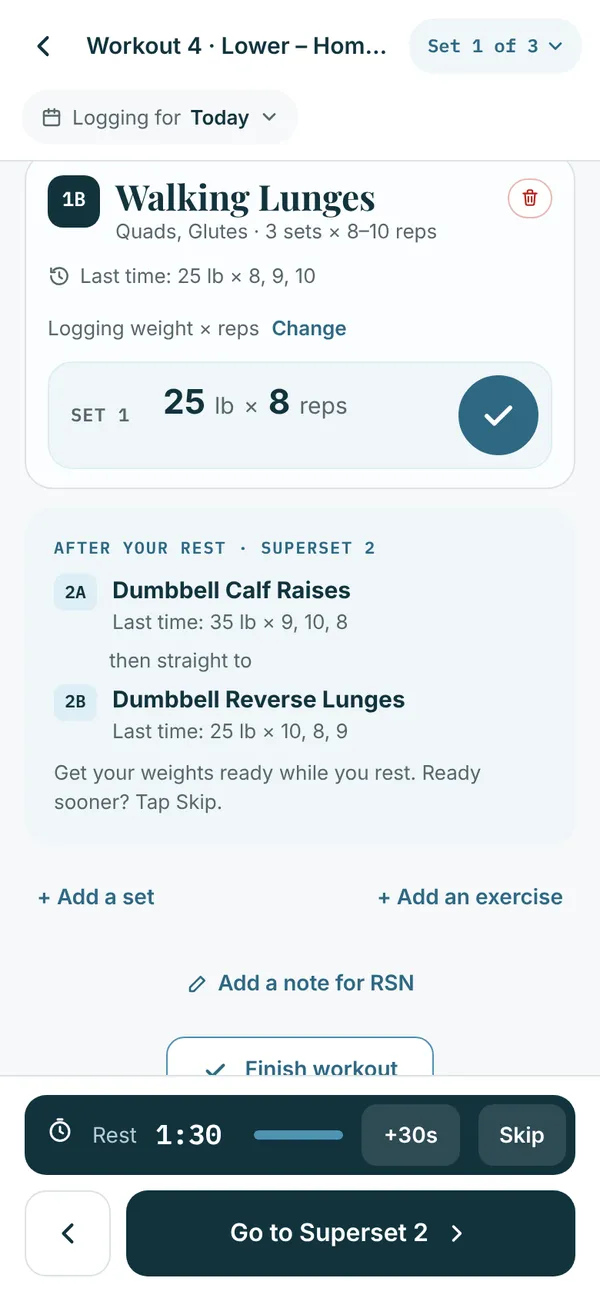
  2. Check off 1B and your rest starts. While you rest, the app shows what’s next with last time’s numbers, so you can get your weights ready.
  3. Tap Go to Superset 2 and do the same.
  4. After the last superset, rest, then start set 2 back at 1A. Keep going until every set is done.

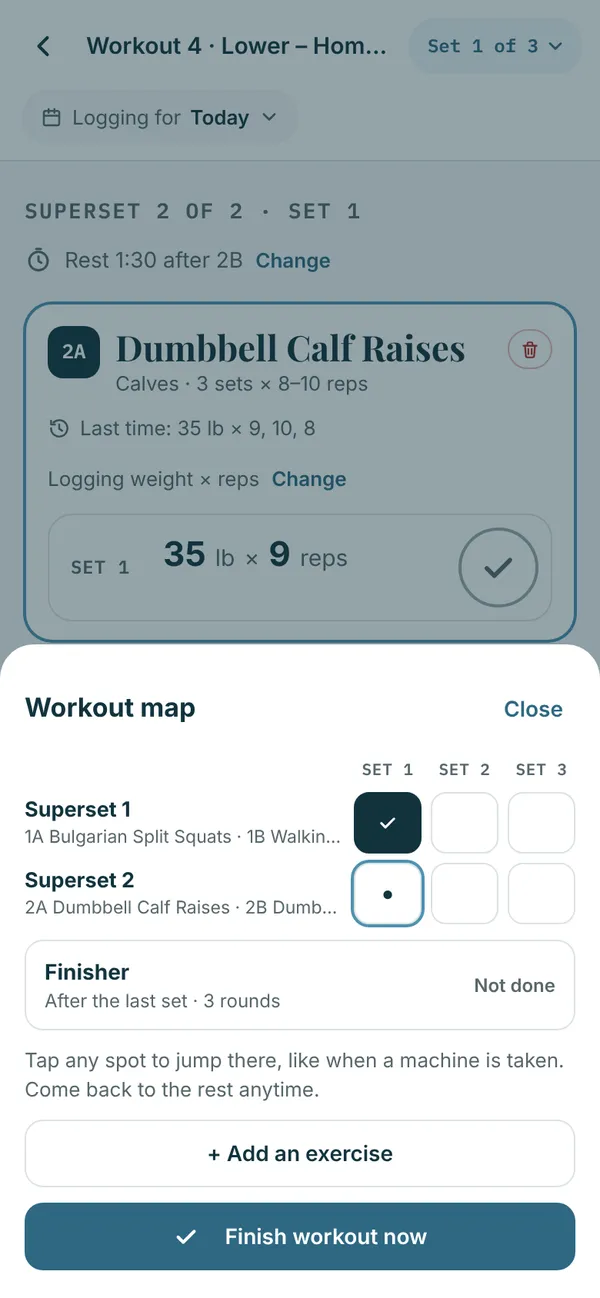
Machine taken? Tap Set 1 of 3 at the top for the workout map: every superset and set, with what’s done. Tap any spot to jump there and come back to the rest later.

The rest after each superset comes from your plan. Tap Change next to it to use another time for this workout or every time.

Superset 1: 1A checked off, then straight to 1B
Resting after 1B, with Superset 2 up next
The workout map: supersets and sets

The finisher

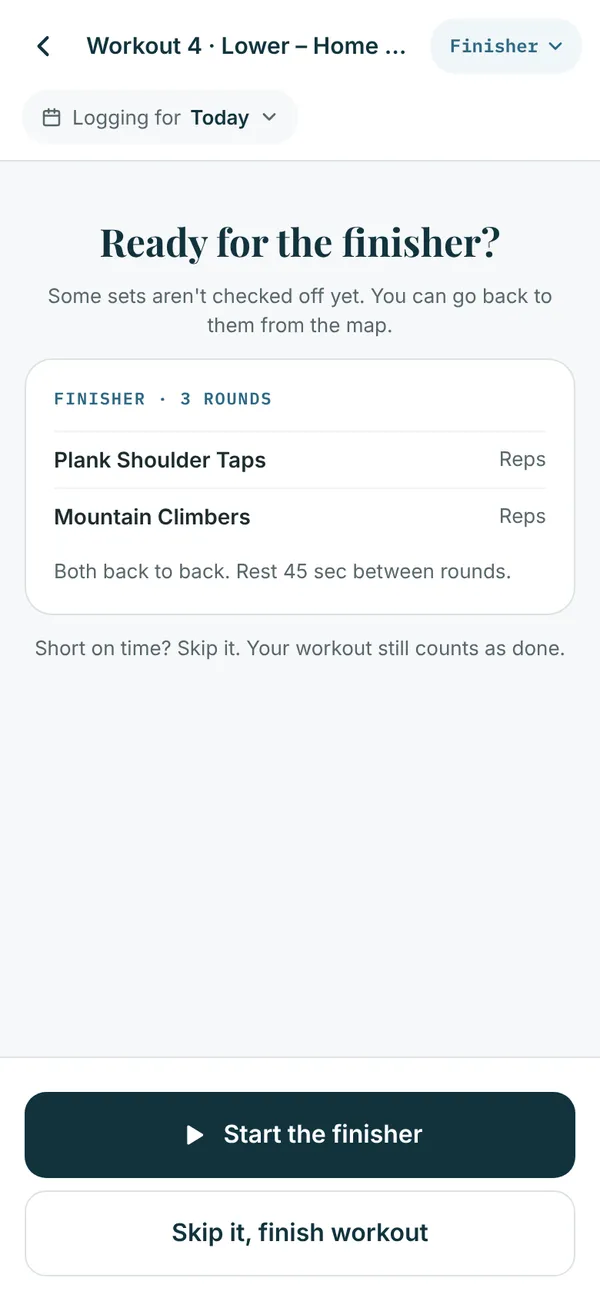
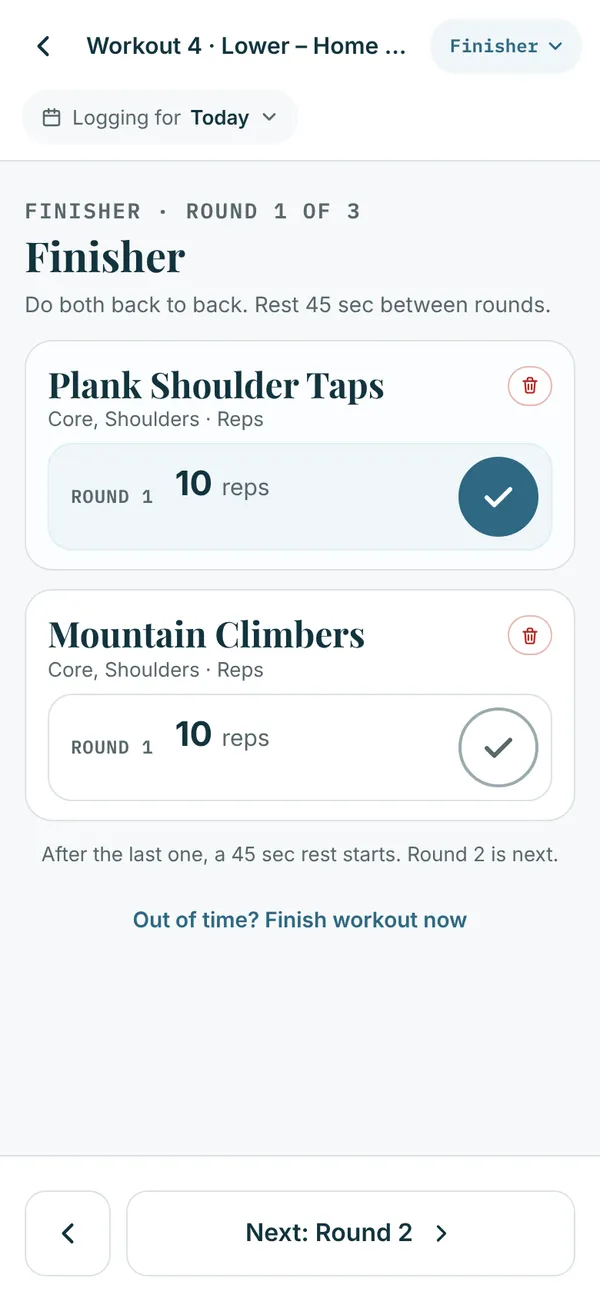
Some workouts end with a finisher: a few quick moves done back to back, in rounds. After your last set, the app asks: Start the finisher, or Skip it, finish workout.

Short on time? Skip it. Your workout still counts as done. During the finisher, Out of time? Finish workout now ends it anytime.

All sets done: start the finisher or skip it
Finisher round 1 with each move checked off

Daily steps

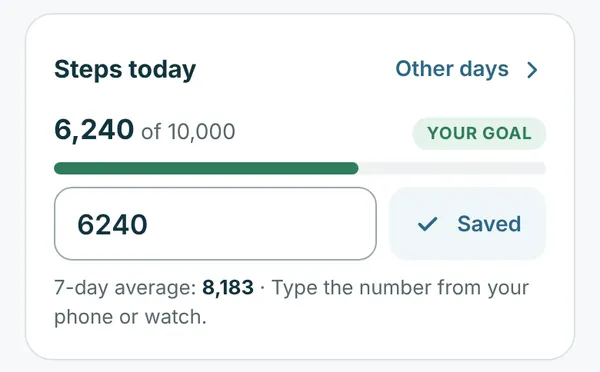
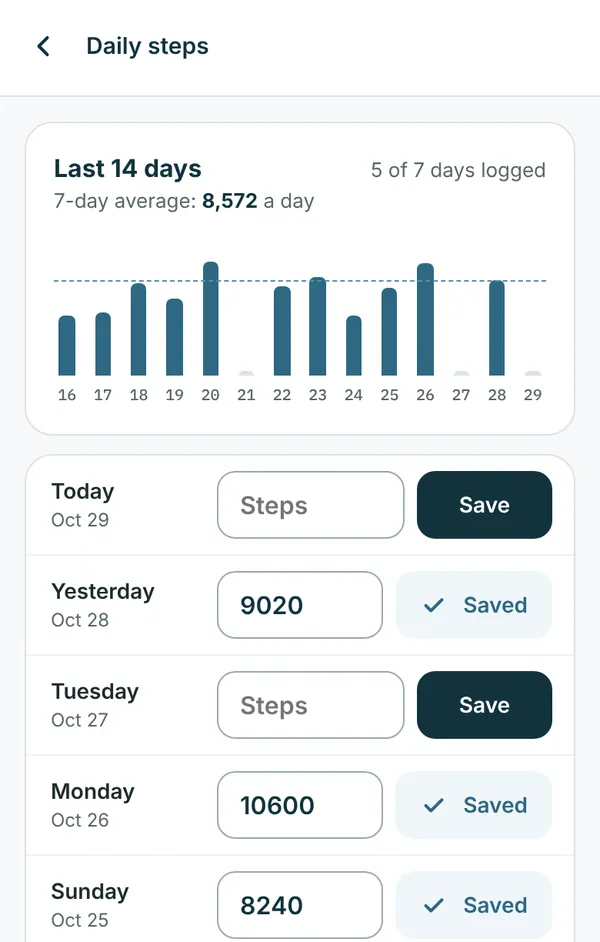
Type today’s steps from your phone or watch on Today and tap Save. Other days lets you add or fix any of the last 14 days.

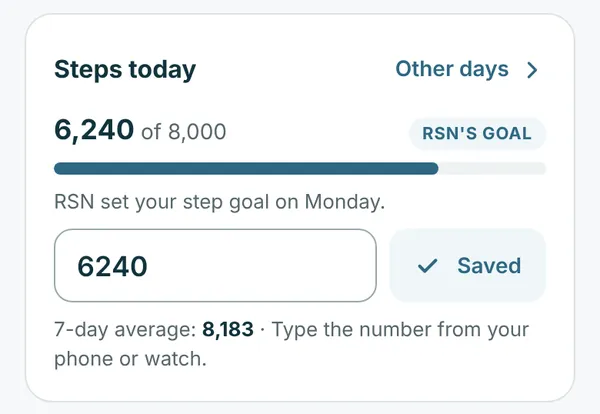
Your step goal. When RSN sets a daily step goal for you, Steps today shows how close you are, with an RSN’s goal tag. RSN can change it from week to week.

Rather use your own? In Settings, under Step goal, turn off RSN’s goal, type Your own goal and tap Save. It shows on Today in green, tagged Your goal. Turn RSN’s goal back on anytime. When RSN sets a new goal, it shows on Today in place of yours, and you can hide it again. No goal from RSN yet? You can still set your own.

Steps today with RSN's goal and steps logged
Steps today with your own goal, in green
Daily steps for the last 14 days

Cardio

If your plan has cardio, it’s the last item in that workout. Log your minutes, plus miles (walking, running, treadmill, bike), laps (swimming), meters (rowing) or level (elliptical, stair stepper). Other activities log minutes only.

Changing a workout

Your plan comes from RSN, and you can still change any workout to fit your day, before you start or while you’re doing it. RSN sees your changes, and RSN’s version is always kept.

Change a workout without starting it

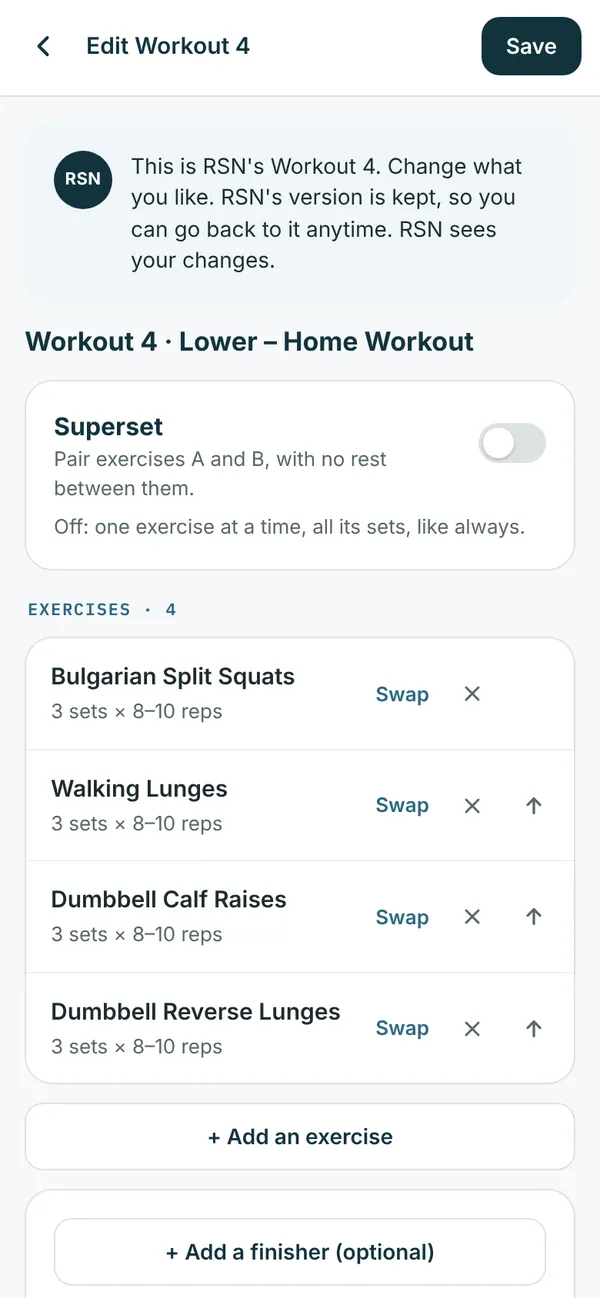
At home and want to change a workout before you go? On Today, pick the workout and tap Edit workout (or tap Edit on it in My Plan). Nothing starts.

  • Swap an exercise for another, remove one with ×, or move one up with the arrow.
  • Tap an exercise to change its sets and reps, or how it’s logged.
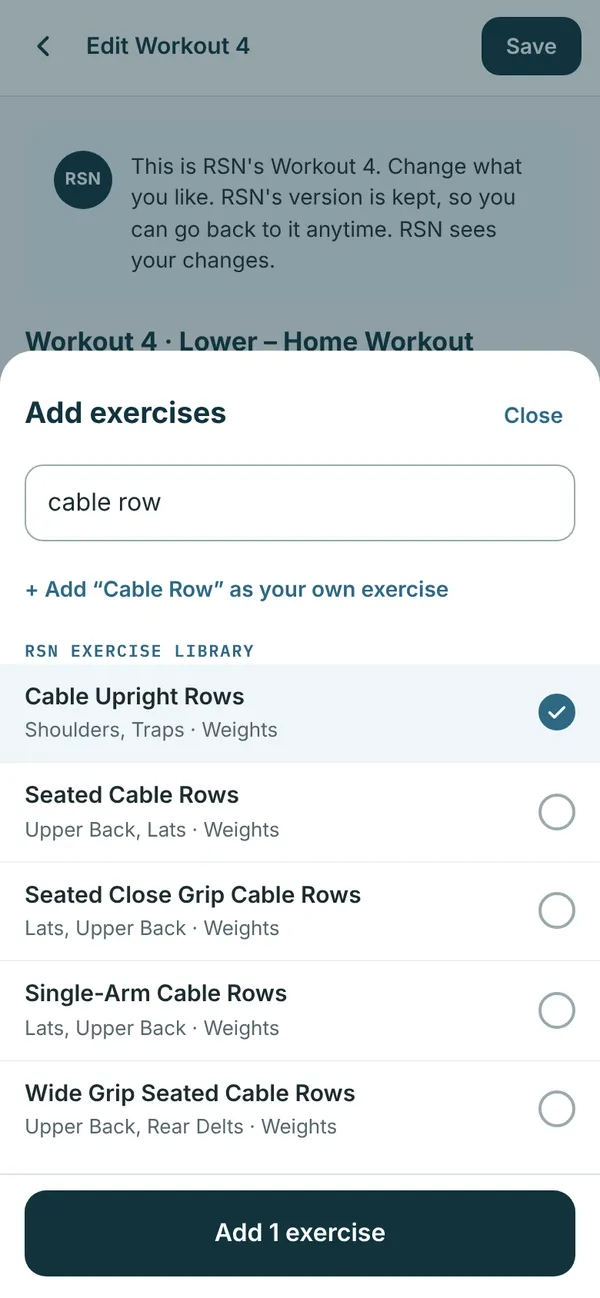
  • + Add an exercise to search for more. Pick several at once.
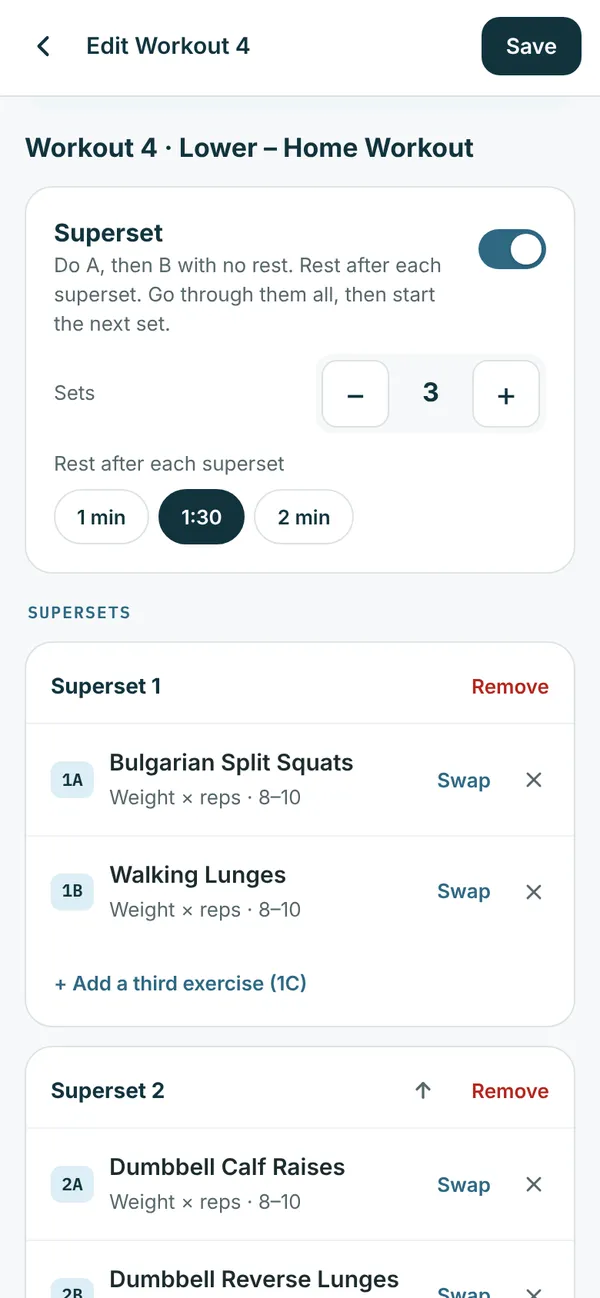
  • Turn on Superset to pair exercises (A and B, no rest between), and set the sets and the rest after each superset.
  • + Add a finisher (optional) adds a few quick moves done in rounds at the end.

Tap Save workout, or Save and start it now. Your version of the workout is used from now on. Want RSN’s back? See Go back to RSN’s plan.

Editing Workout 4 without starting it
Superset turned on, with sets and rest after each superset
Picking exercises from the RSN exercise library

Add an exercise or cardio during a workout

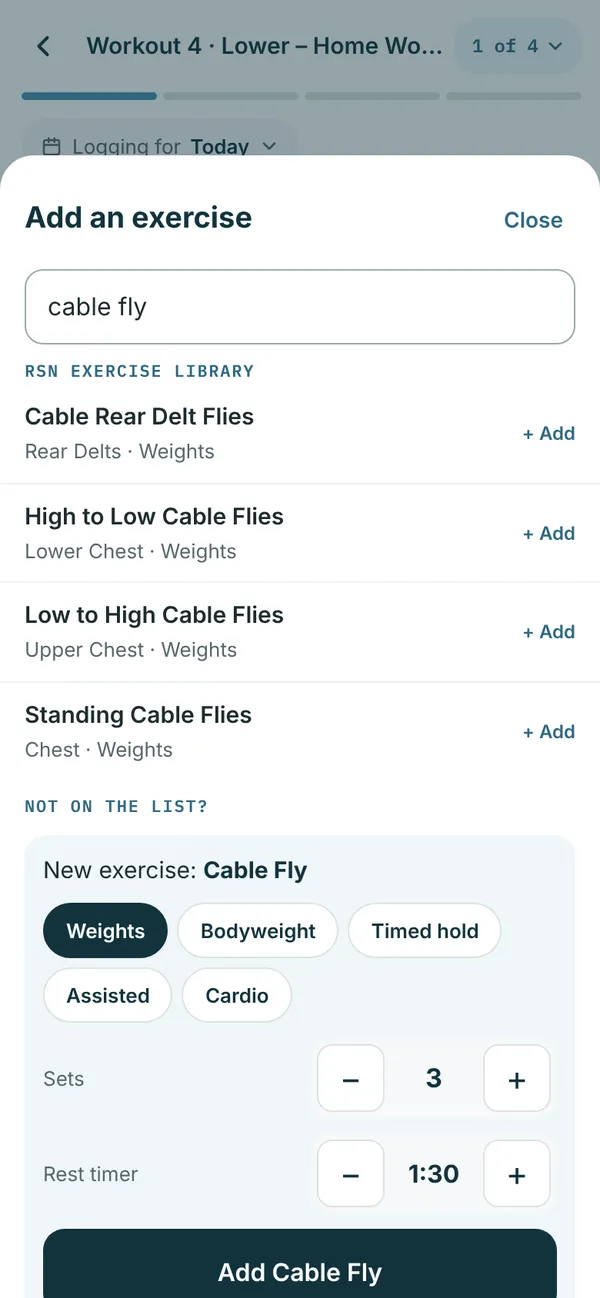
In a workout, tap + Add an exercise on any exercise or in the exercise list. Search the RSN exercise library (hundreds of exercises, including machines, Smith machine, cables, bands and dumbbells), pick one you’ve added before or one from your plan, or tap a cardio activity.

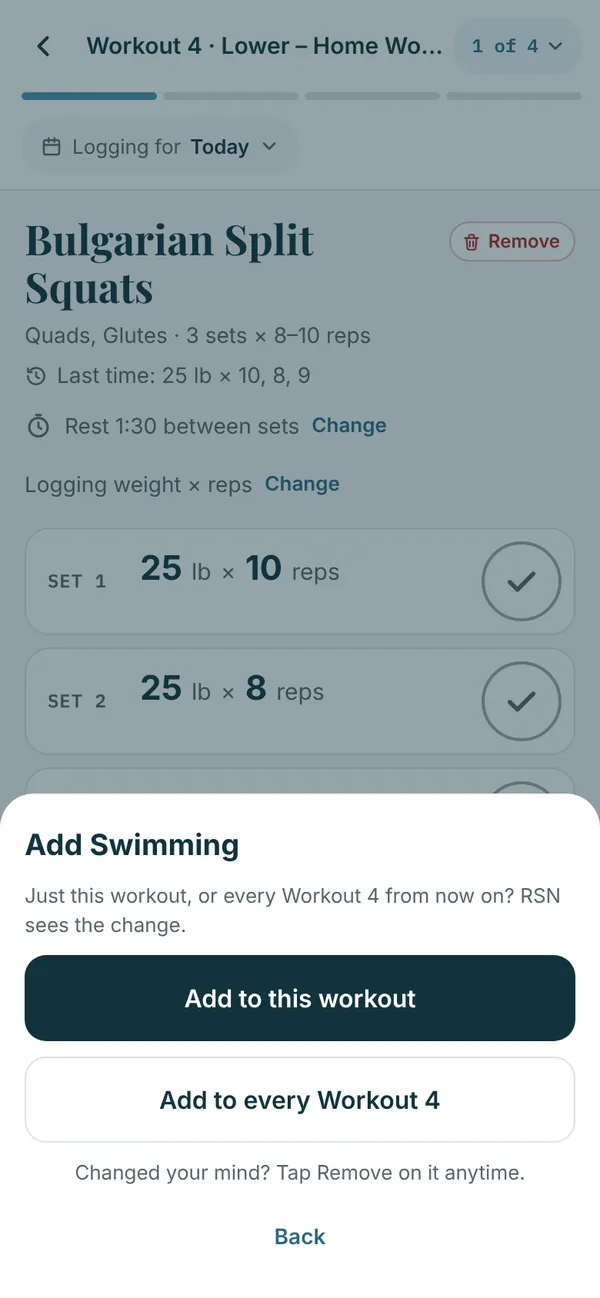
Not in the library? Type its name, pick how you log it, and add it as your own. Then choose Add to this workout, or add it every time that workout comes up.

Searching the RSN exercise library during a workout
Choosing to add it to this workout or every time

Remove or swap an exercise

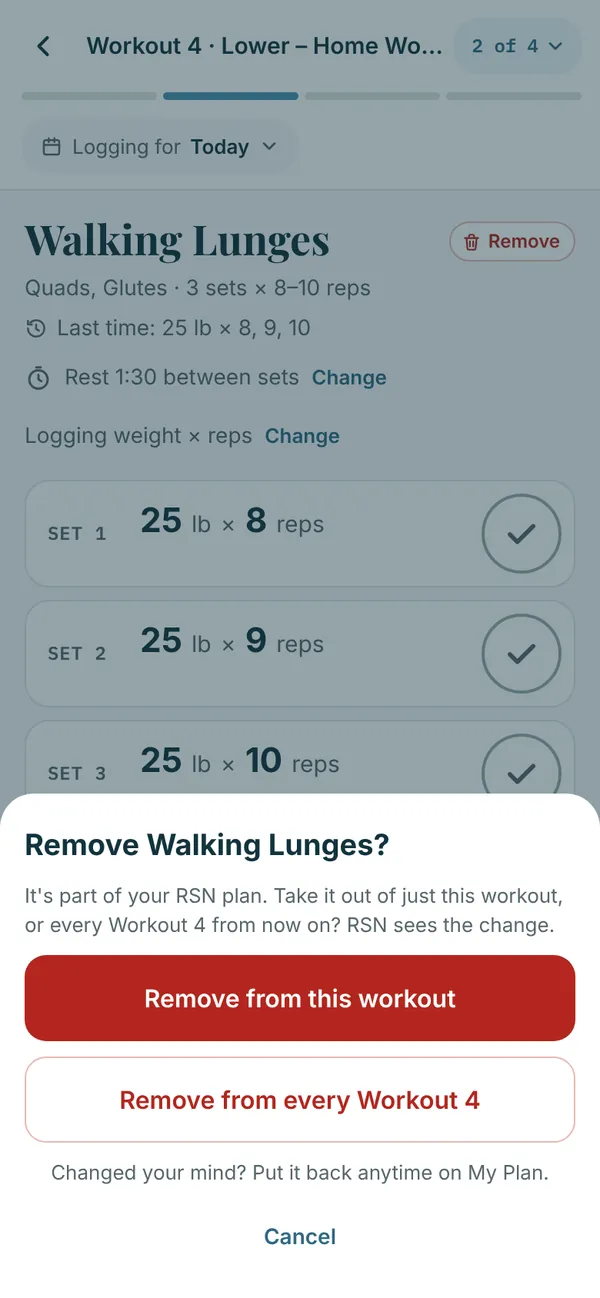
Tap Remove next to the exercise’s name. For one from RSN’s plan, choose this workout only, or every time that workout comes up. Then add another in its place, or tap No thanks.

Removing an exercise never erases what you’ve already logged.

Removing an exercise from this workout or every time

See your changes on My Plan

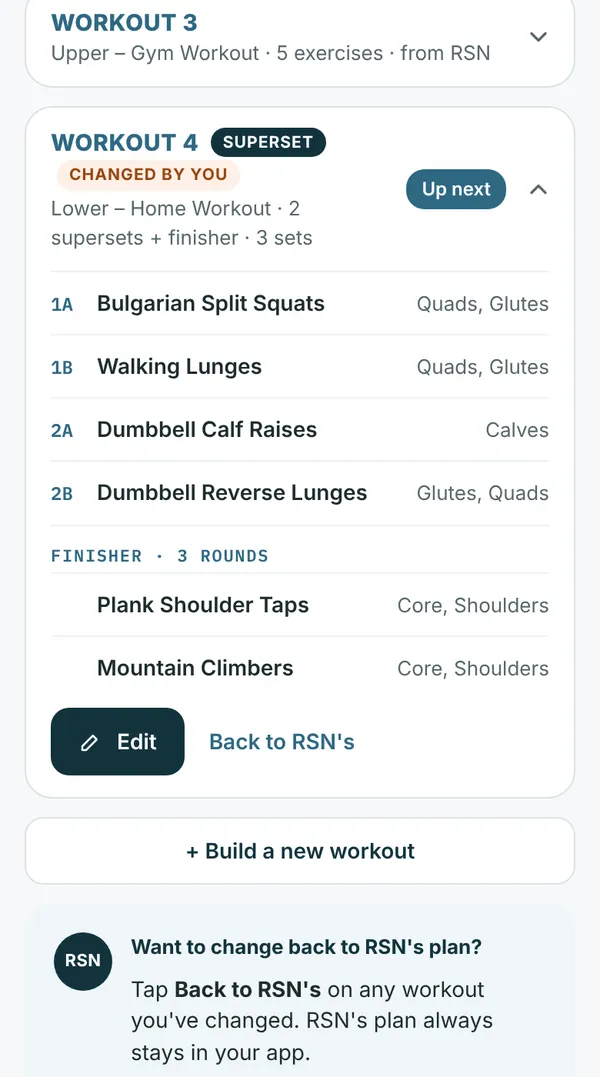
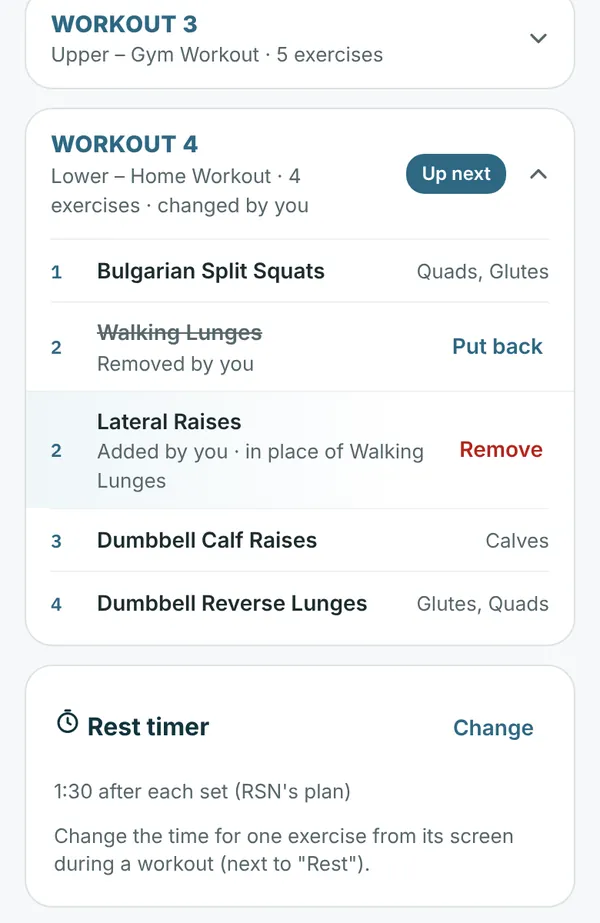
My Plan shows your whole program. A workout you changed says Changed by you, with Edit and Back to RSN’s. If you removed an exercise during a workout, it’s crossed out with Put back. Ones you added say Added by you, with Remove.

Exercises you’ve created are listed under Your exercises, where you can rename or remove them. My Plan also has your rest timer setting and a link to the printable PDF of your plan.

My Plan with a changed workout: Edit and Back to RSN’s
My Plan with a removed exercise and one added in its place

Go back to RSN’s plan

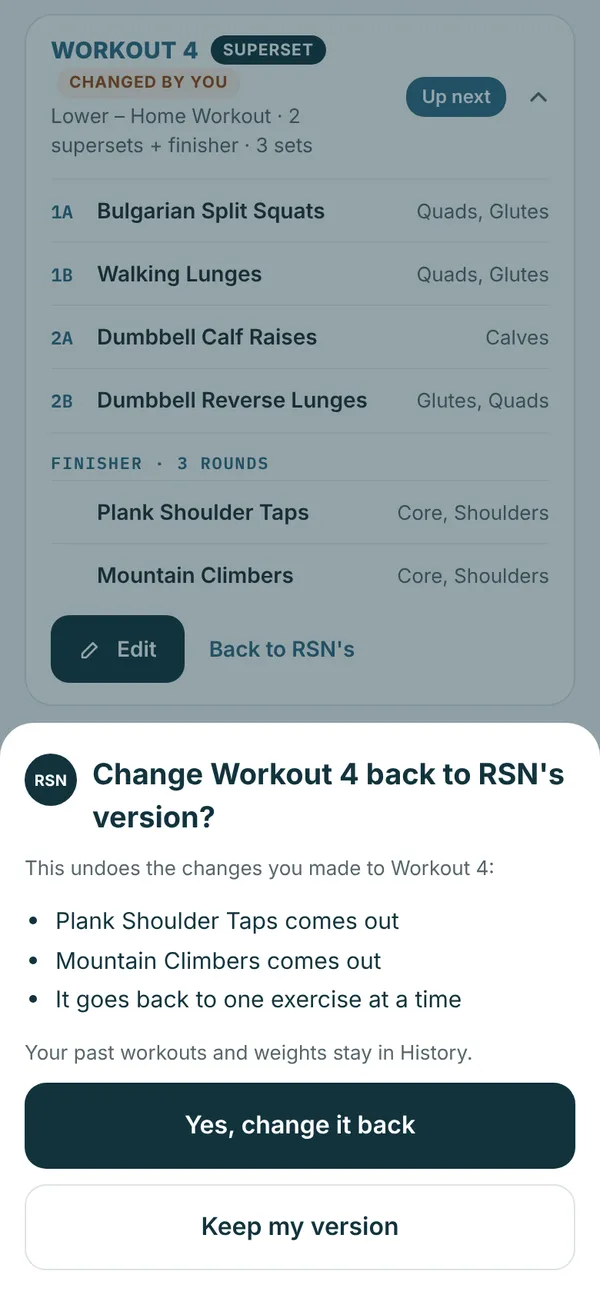
RSN’s plan always stays in your app. On My Plan, tap Back to RSN’s on any workout you’ve changed. The app shows what will change back and asks first: tap Yes, change it back or Keep my version.

Changed two or more? Change everything back to RSN’s plan does them all at once. Your own workout days stay, and your past workouts and weights stay in History.

Confirming: change Workout 4 back to RSN’s version

Add a workout day of your own

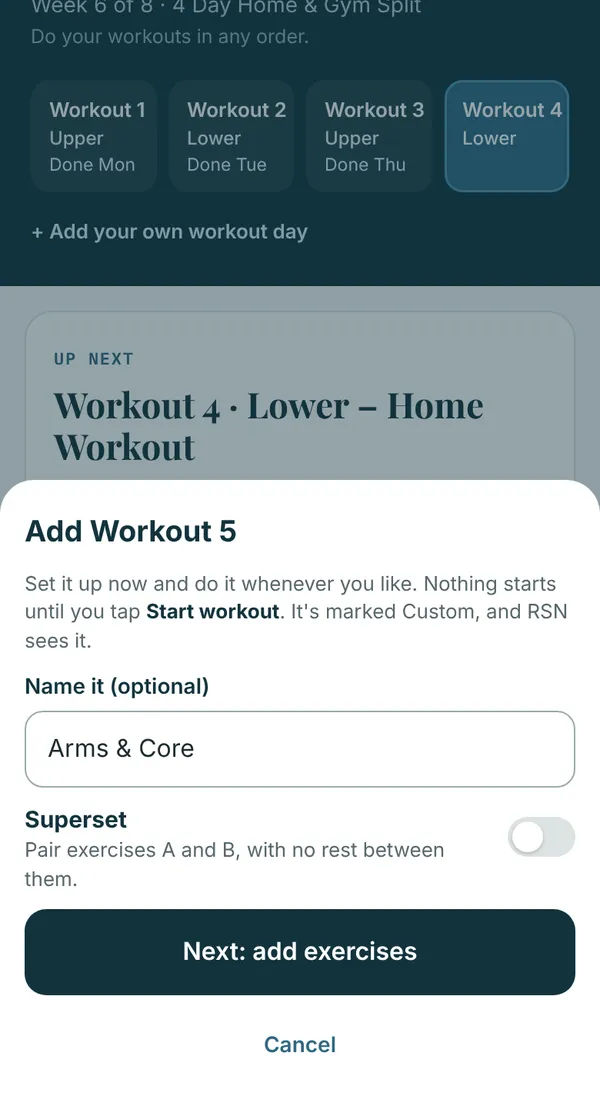
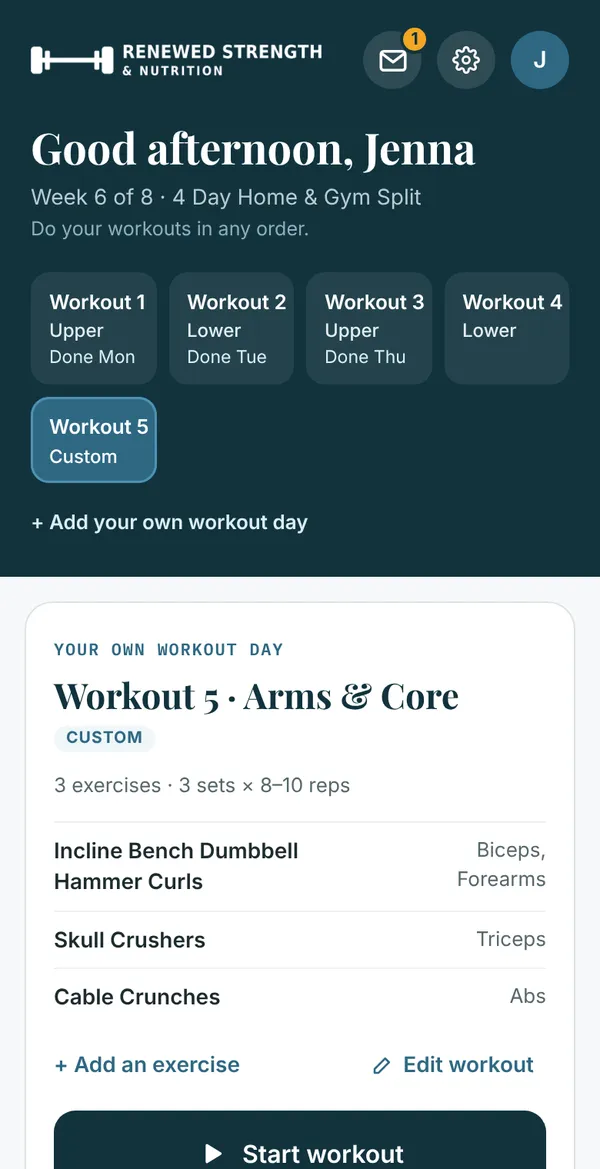
Want an extra day, like arms and core or a swim? On Today, tap + Add your own workout day, name it if you like, turn on Superset if you want pairs, and tap Next: add exercises. Pick your exercises and tap Save workout.

  • Nothing starts until you tap Start workout, so you can set it up at home and do it whenever you like.
  • It gets the next number (Workout 5 on a 4-day plan) and a Custom tag. It’s extra: your weekly goal and Up next stay on RSN’s workouts.
  • Change it anytime with Edit workout. Rename or remove it from Today or My Plan. Workouts you logged on it stay in History.
Adding Workout 5: name it and choose superset or not
Workout 5 saved and ready on Today, with a Custom tag

Change how an exercise is logged

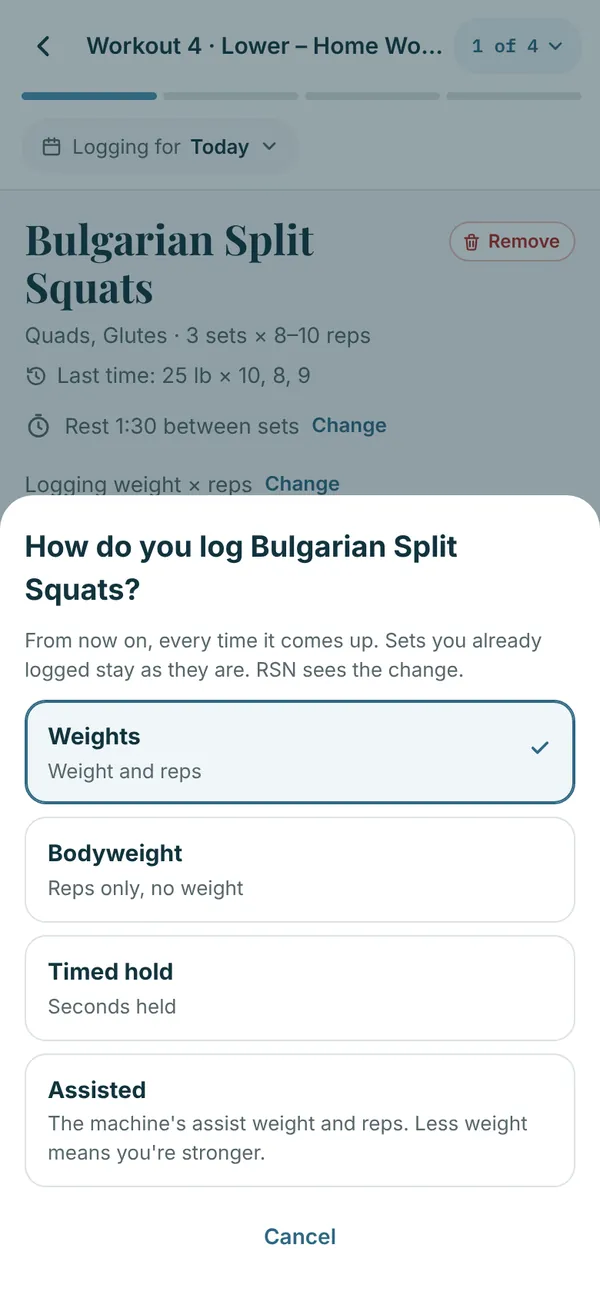
Each exercise logs one way: Weights (weight and reps), Bodyweight (reps only), Timed hold (seconds) or Assisted.

If one doesn’t fit how you do it, tap Change next to Logging weight × reps on the exercise and pick another. It’s logged that way from now on, every time it comes up, and RSN sees the change. Exercises from the RSN exercise library offer the ways that fit them.

Choosing how an exercise is logged

Assist machines

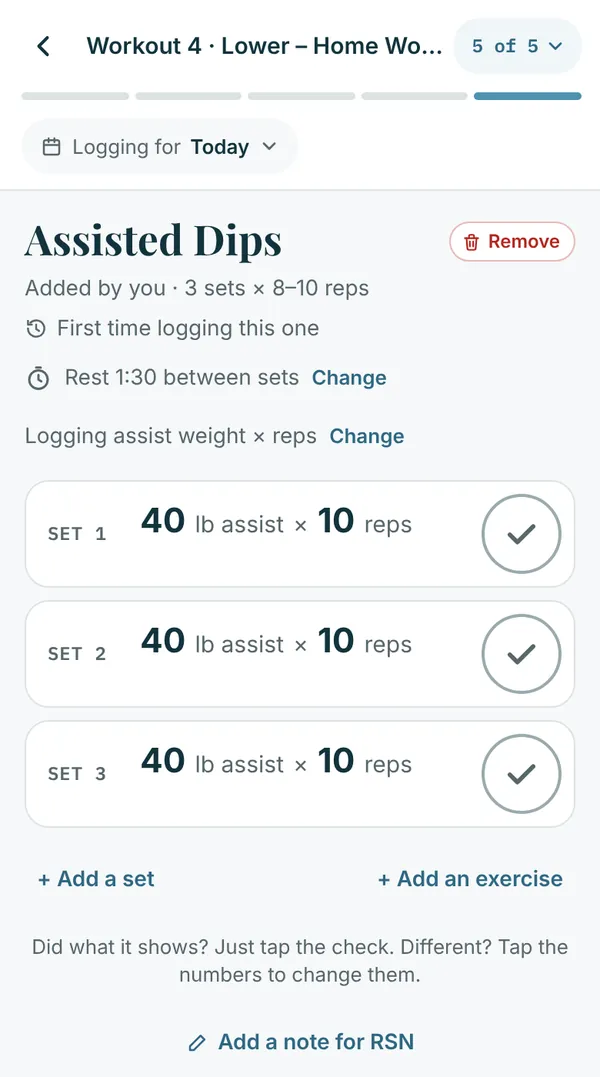
For assisted pull-ups or dips, pick Assisted and log the machine’s assist weight and your reps.

Less assist means you’re getting stronger. Hit the top of your reps on every set and the app shows Ready for less help.

Assisted dips logged with the assist weight

Your rest timer

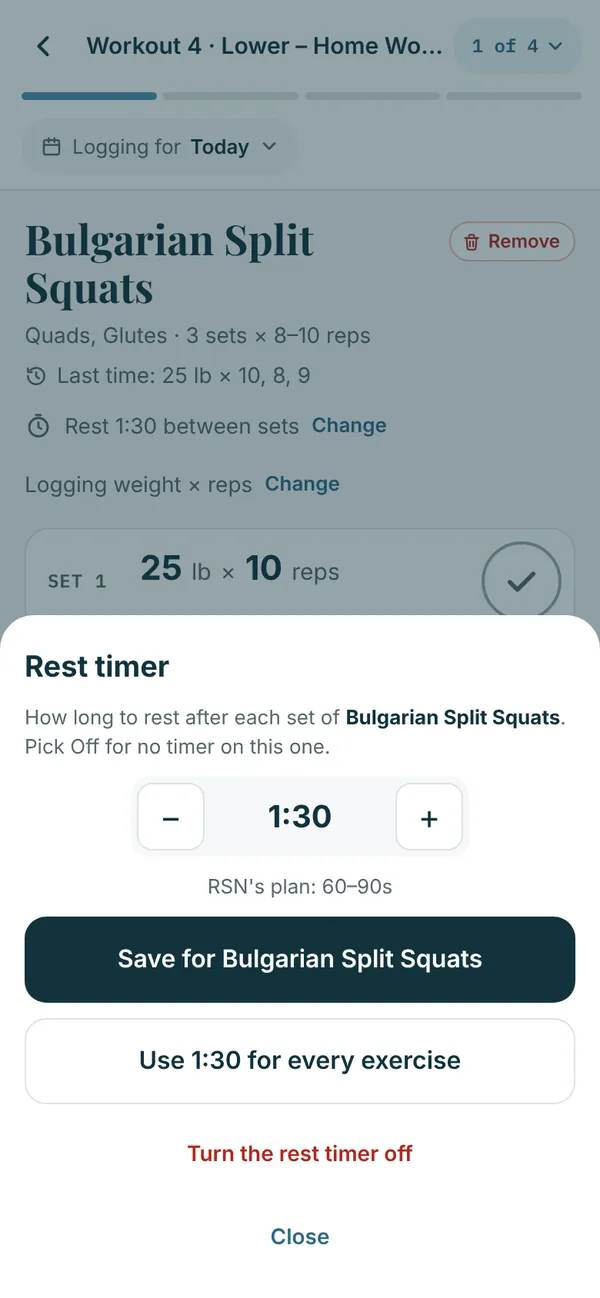
To change your rest, tap Change next to Rest on the exercise. Save a time for that exercise, use it for every exercise, or turn the rest timer off. You can turn it back on anytime from My Plan, or from Rest timer in Settings.

Setting the rest time for an exercise

History and Progress

Every workout you’ve logged, and how far you’ve come.

Fix a past workout in History

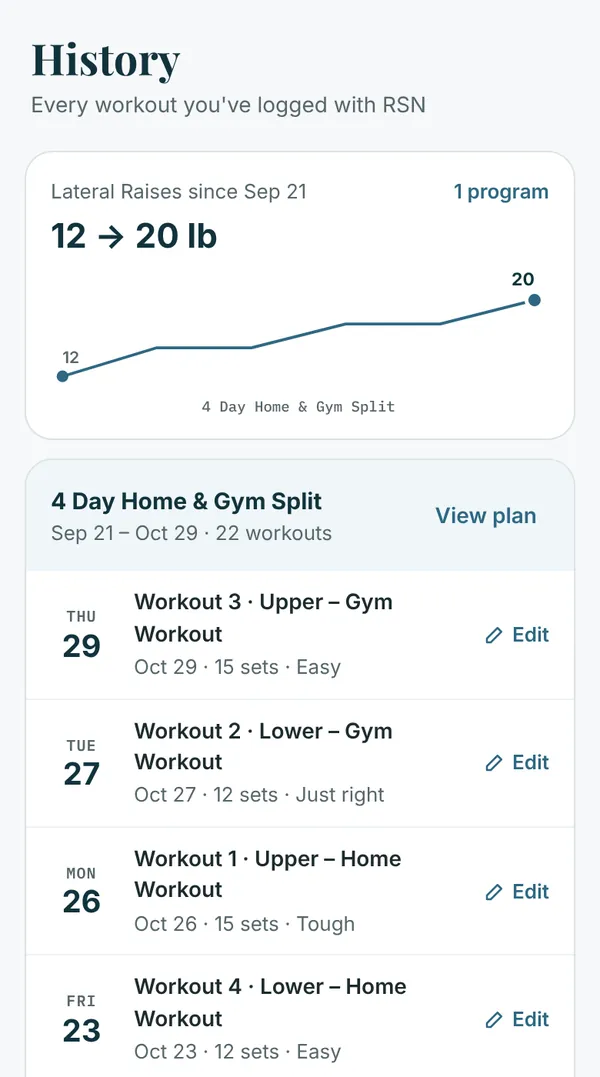
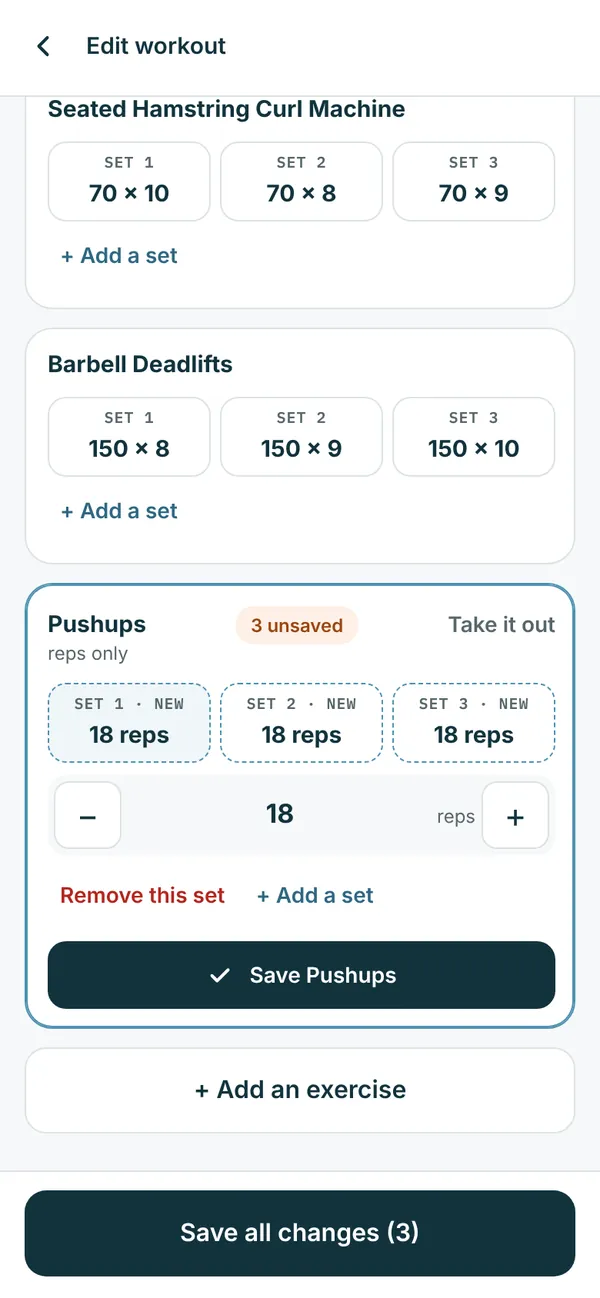
History lists every workout you’ve logged with RSN. Made a mistake or forgot something? Tap Edit on a workout from the last 7 days to:

  • fix a set or add a set you missed,
  • add a forgotten exercise or cardio with + Add an exercise,
  • or change the date.

Then tap Save all changes. RSN sees what changed. Older workouts you can still view. Just finished? Tap Forgot something? under your workout summary.

History with past workouts and Edit
Editing a past workout and adding a forgotten exercise

Progress

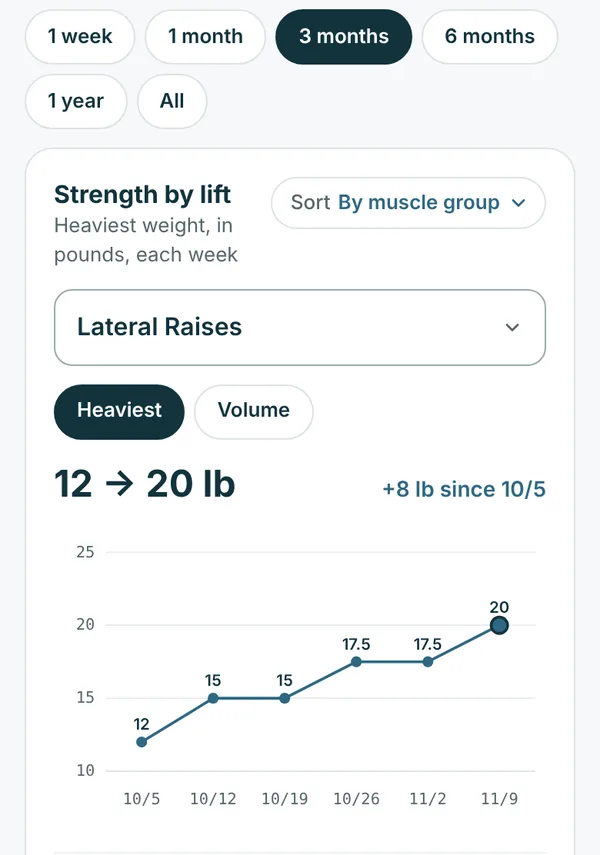
The Progress tab charts your strength on every lift, your cardio, your daily steps, and your workouts each week.

  • Pick how far back with the buttons at the top, from 1 week to All. One week or one month shows each day; longer shows each week (Monday to Sunday). Dates run along the bottom.
  • Pick a lift under Strength by lift. Lifts are grouped by muscle, and Sort puts them in another order. Lifts from your earlier plans are there too, with all their history.
  • Heaviest shows your best set. Volume adds up weight × reps for every set (reps or seconds for an exercise with no weight).
  • Tap a dot or bar to see the sets behind it. The arrows step to the one before or after.
  • Ready to move up? Hit the top of your reps on every set, and next time the app suggests a heavier weight.
Progress with time spans, the Heaviest and Volume buttons and a strength chart by date

Talking to RSN

Send RSN a note anytime, and see RSN’s replies, weekly notes and check-in calls.

Messages

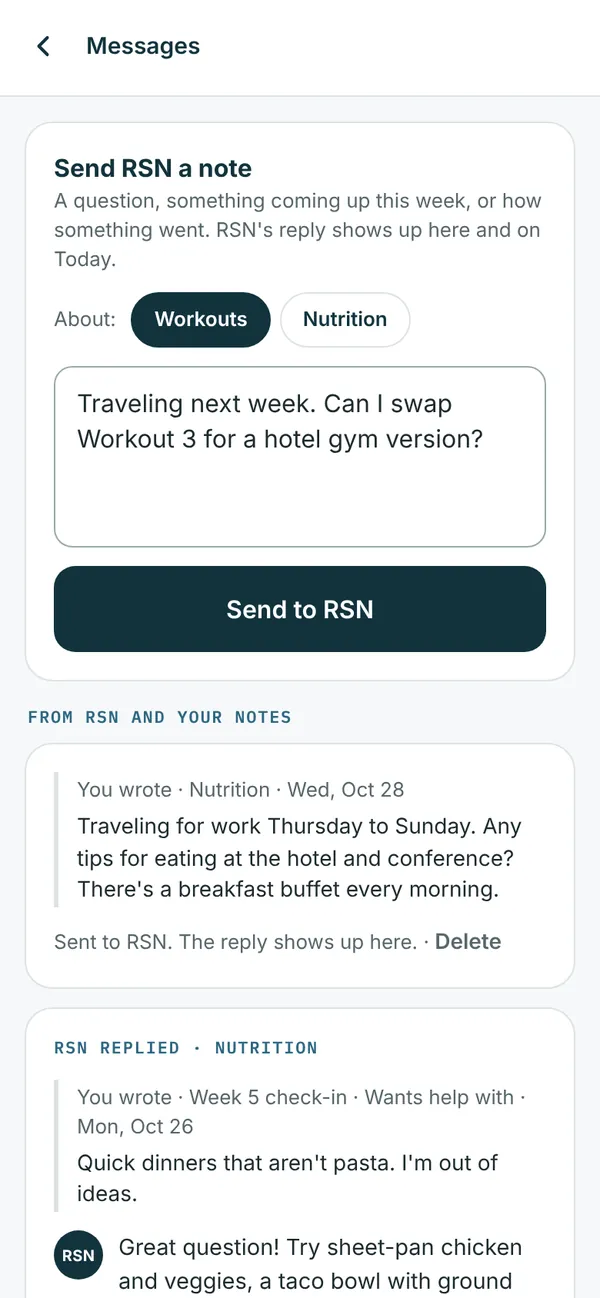
Tap the envelope at the top of Today to send RSN a note anytime: a question, something coming up this week, or how something went. A number on the envelope means something new is waiting.

With the bundle, pick Workouts or Nutrition for each note. RSN’s replies and weekly notes are all in Messages, newest first.

The envelope at the top of Today
Messages: send RSN a note and read replies

Notes with a workout

Tap Add a note for RSN on any exercise. When you finish, there’s room for one more under Anything RSN should know? RSN reads every note.

Replies and weekly notes

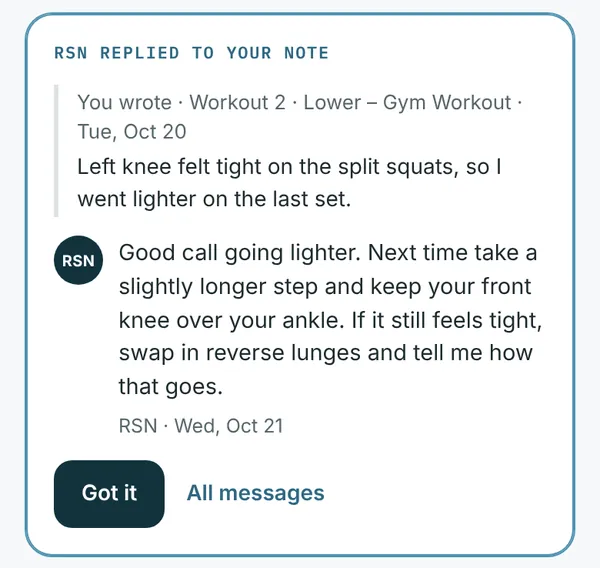
When RSN answers one of your notes, RSN replied to your note shows on Today, with your note above the reply. Tap Got it once you’ve read it.

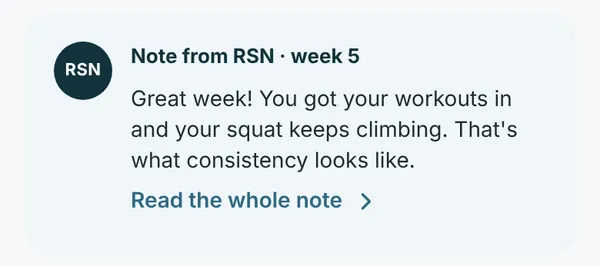
After each week of your plan, RSN can also send a weekly note. It shows on Today for a week, and it’s always in Messages.

RSN replied to your note, on Today
A weekly note from RSN on Today

Check-in calls

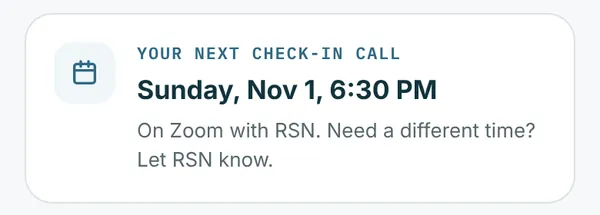
When RSN books a check-in call with you, Your next check-in call shows on Today with the day, the time, and how you’ll meet. Need a different time? Tell RSN in Messages. The card goes away after the call.

Your next check-in call on Today

Nutrition coaching

For the bundle and personal nutrition coaching. Your food goes in MyFitnessPal; everything else is in the RSN app.

Week 1: your starting point

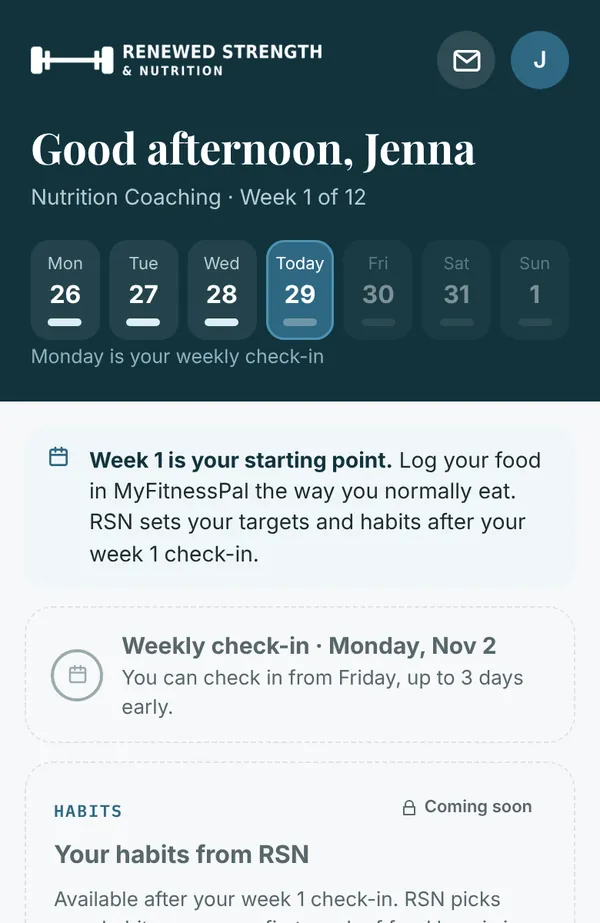
In week 1, log your food in MyFitnessPal the way you normally eat. RSN sets your daily targets and habits after your week 1 check-in.

The strip at the top of Today shows each day of the week, and your check-in day is named under it.

Nutrition Today in week 1

Log your food in MyFitnessPal

Your food goes in the free MyFitnessPal app. Link up once, so RSN can see your diary:

  1. Share your diary with friends. Android: More → Privacy → Sharing and Email Settings → Diary Sharing → Friends. iPhone: tap the profile icon at the top right of Today, then Settings → Sharing & Privacy → Diary Sharing → Friends Only.
  2. Add RSN as a friend. Android: More → Friends, then the add icon. iPhone: profile icon → Friends → +. Send a request to RSNcoach with your full name.

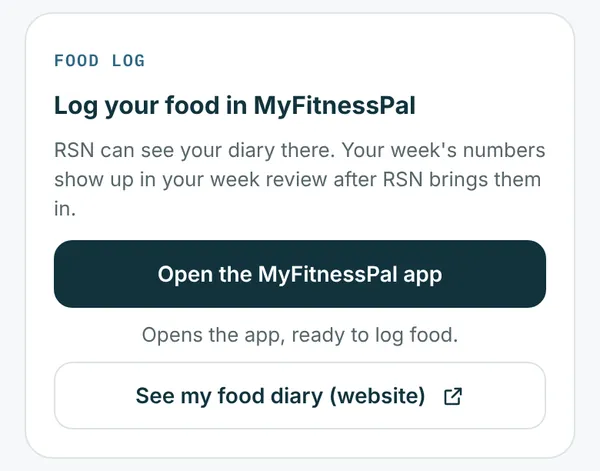
MyFitnessPal moves its menus now and then. The guide in your welcome email has pictures of each step, or ask RSN in Messages. On the RSN app’s Today, the Food log card opens MyFitnessPal for you.

The Food log card on Today

Your habits

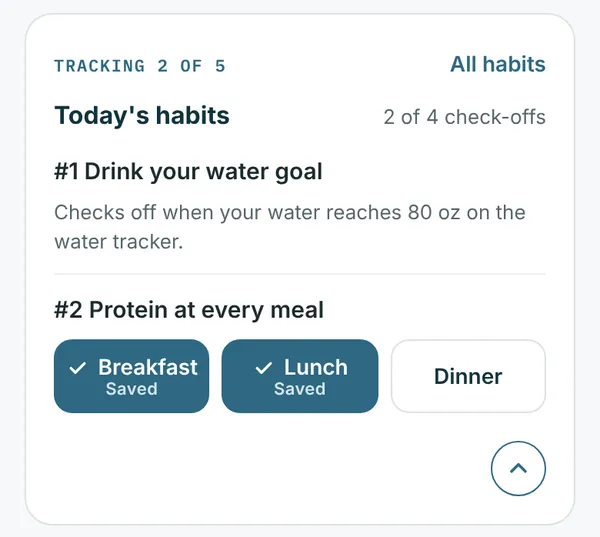
RSN gives you habits to work on, a few at a time. New habits start turned on and show up on Today to check off, by meal or once a day. Want to leave one out for now? Turn it off in All habits, and back on any time. The ones you track are numbered #1, #2, #3 in the order RSN gave them, and the others come after them. Each habit explains why it matters, with ideas for doing it.

Today's habits with meals checked off

Water

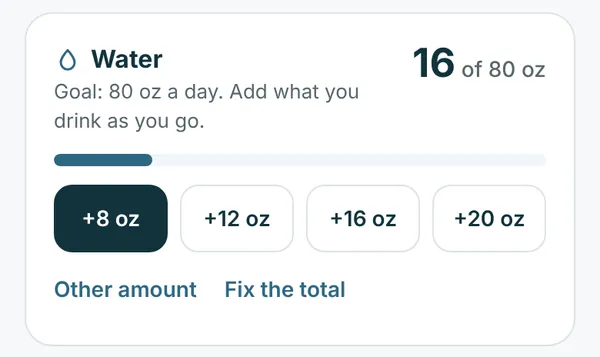
Tap +8 oz, +12 oz, +16 oz or +20 oz as you drink, or Other amount. If water is one of your habits, it checks off when you reach your goal.

The water tracker on Today

How did your meals sit?

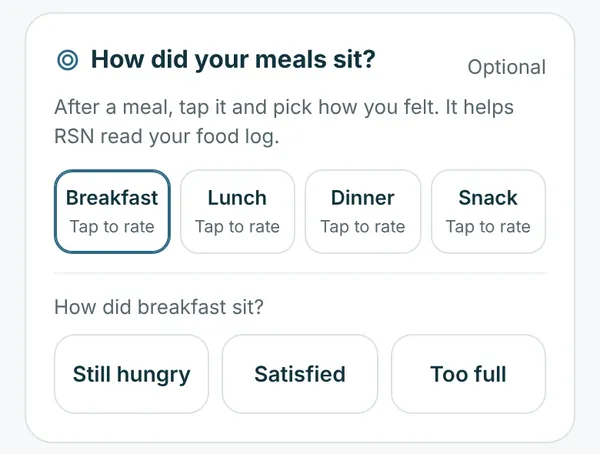
Optional. After a meal, tap it and pick Still hungry, Satisfied or Too full. It helps RSN read your food log.

Rating how breakfast sat

Weigh-ins

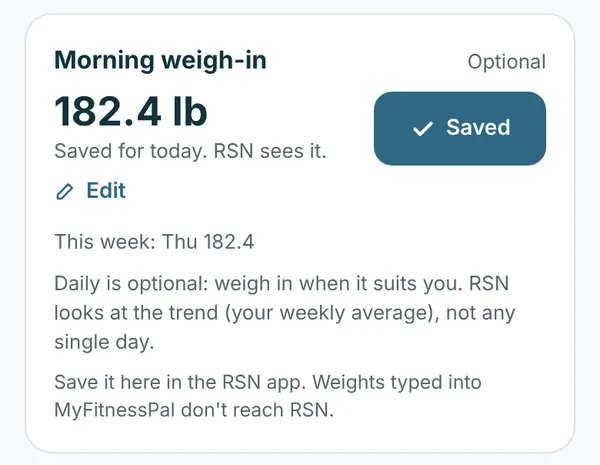
Depending on your plan, you weigh in at your weekly check-in, or you can also save a Morning weigh-in on Today. Daily is optional: weigh in when it suits you, and RSN looks at the trend, not any one day.

Save your weight in the RSN app. Weights typed into MyFitnessPal don’t reach RSN.

A morning weigh-in saved on Today

Wrap up your day

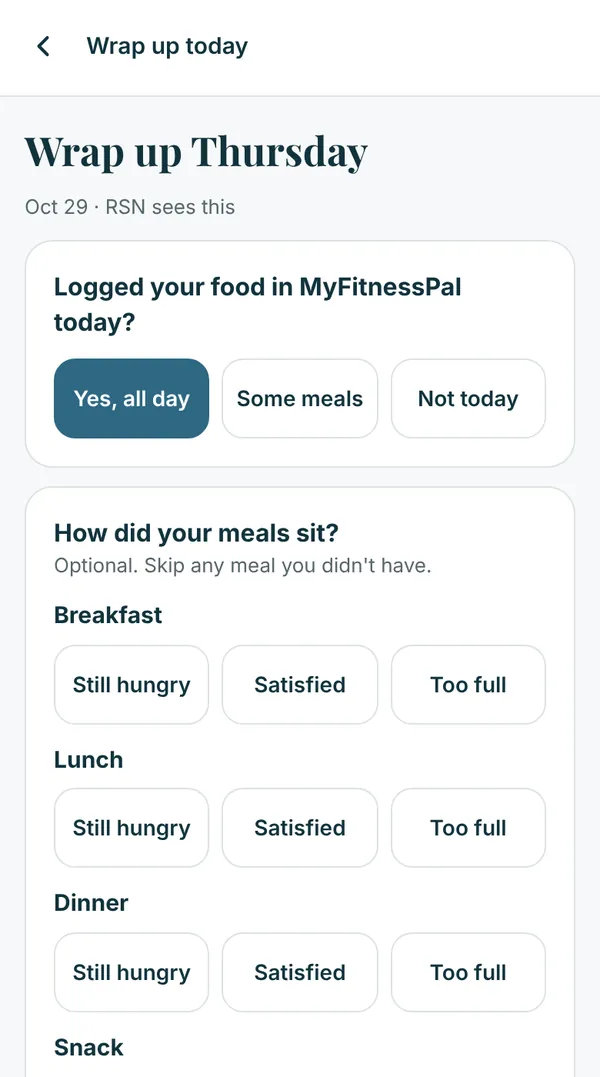
Wrap up today takes about 30 seconds: whether you logged your food in MyFitnessPal, how your meals sat, anything that shaped the day (eating out, travel, poor sleep and so on), and an optional note for RSN.

From 5 PM it shows at the top of Today. Missed a day? The next morning you can wrap up yesterday or skip it, and History lets you fill in days up to a week back.

Wrapping up the day

Your weekly check-in

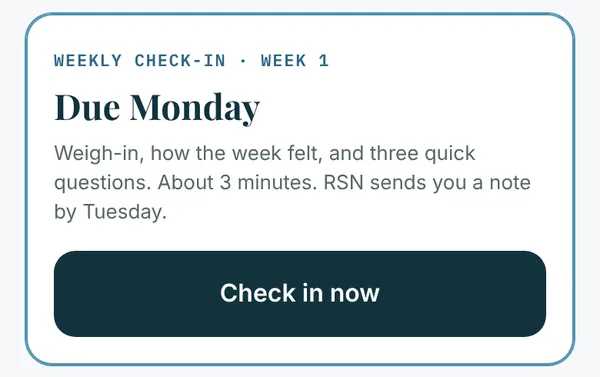
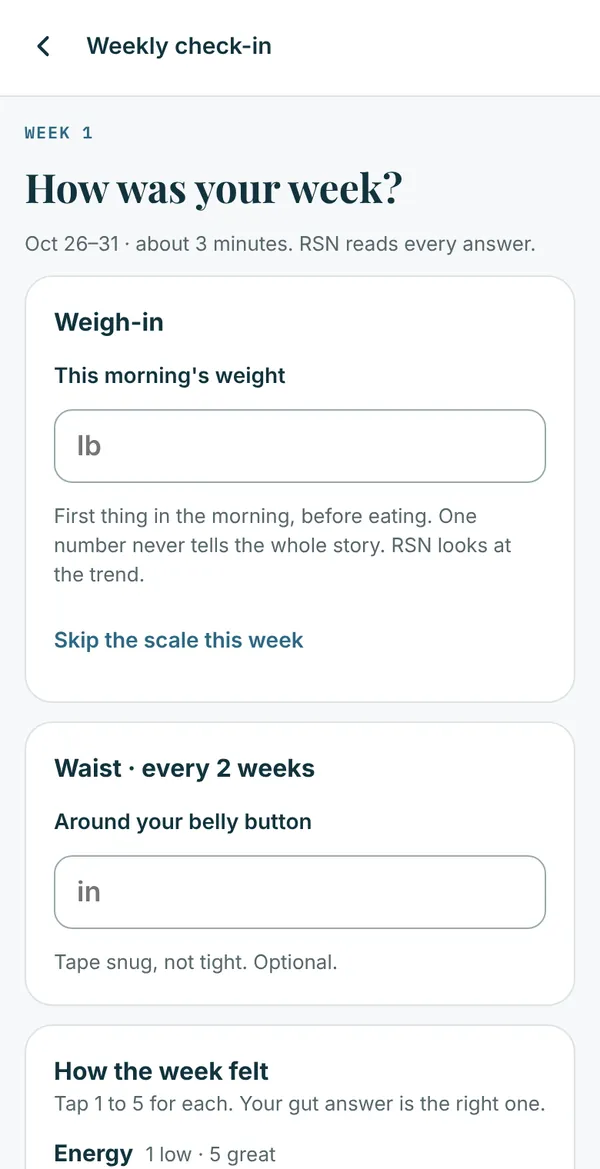
Once a week, on your check-in day, Today shows Check in now. It takes about 3 minutes:

  • your weigh-in (or skip the scale that week),
  • your waist every 2 weeks, if you like,
  • six quick 1-to-5 ratings: energy, hunger, sleep, stress, digestion and cravings,
  • and three questions: your biggest win, what got in the way, and anything you want help with.

Tap Send to RSN. You can check in up to 3 days early, and RSN’s note comes by the next day.

Check in now on Today
The weekly check-in

RSN’s note and your week review

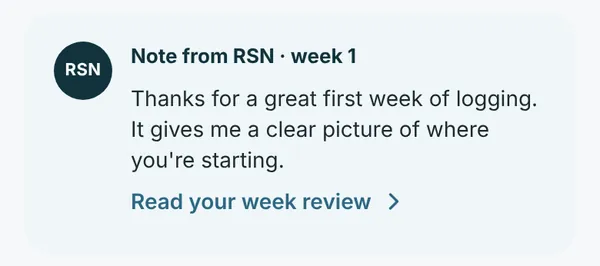
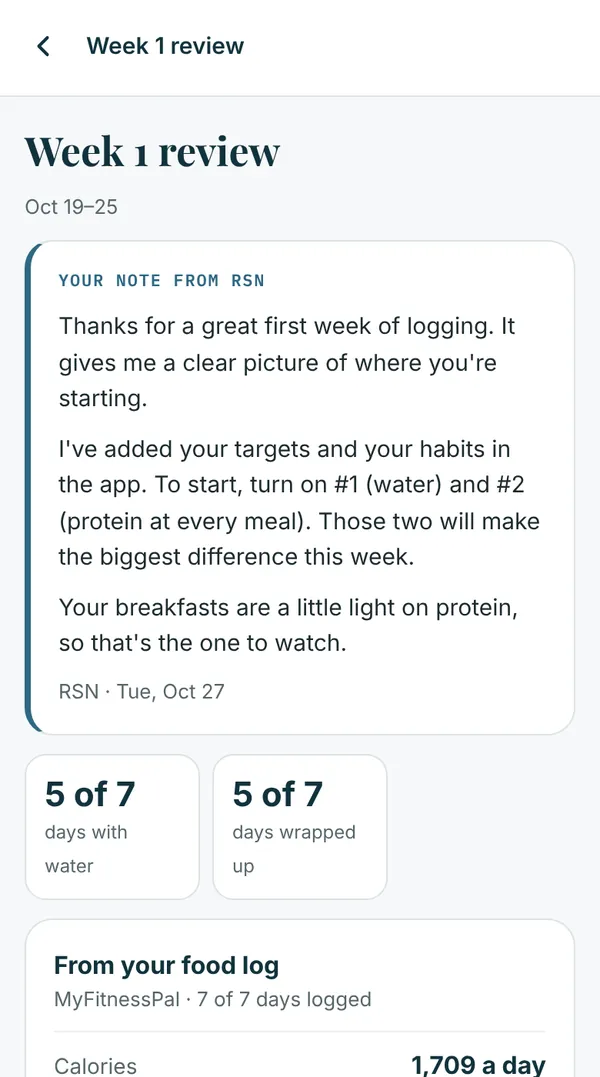
After your check-in, RSN’s note shows on Today. Tap Read your week review for the whole note, your habit and water days, your MyFitnessPal numbers, your weight and waist, and how you felt compared with the week before.

Note from RSN on Today
The week review

Your targets and MyFitnessPal goals

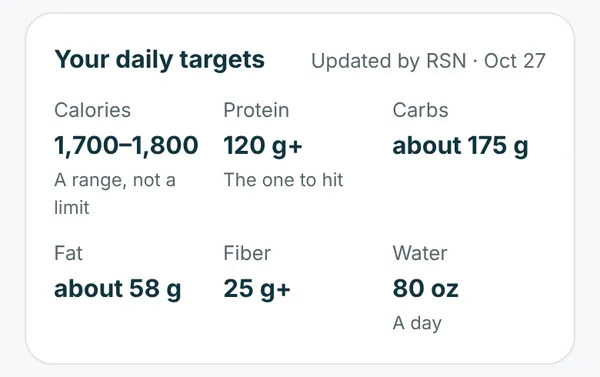
My Plan shows your daily targets (calories as a range, protein, carbs, fat, fiber and water), your habits and your check-in day.

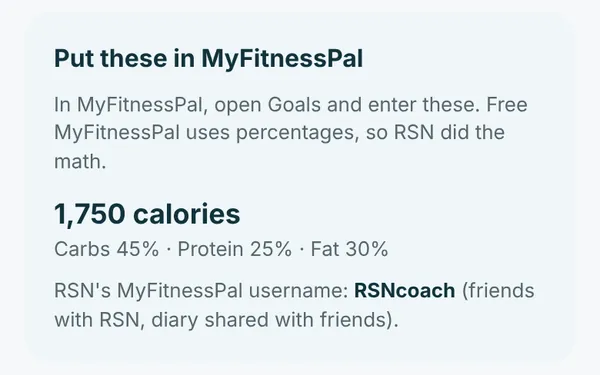
Put these in MyFitnessPal gives you the numbers to enter in MyFitnessPal’s Goals, already worked out as percentages. When RSN updates your plan, a card on Today shows what changed.

Your daily targets on My Plan
The goals to put in MyFitnessPal

Progress and History

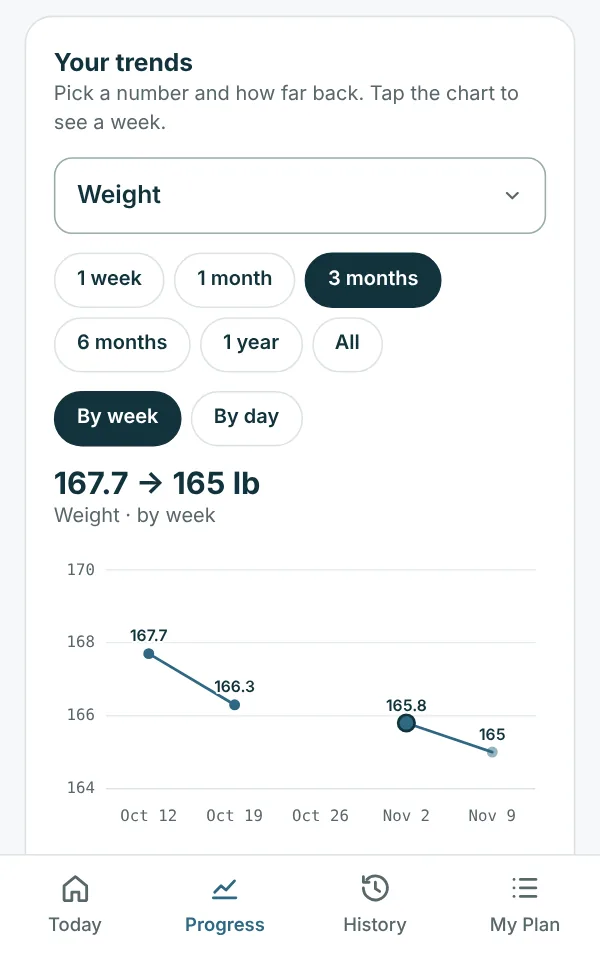
Progress has Your trends: one chart for all your numbers. Tap the box to pick what to see (weight, waist, protein, water, steps, habits hit, your check-in ratings and more), then how far back, from 1 week to All. Numbers you log every day can show By day or By week. A dashed line or shaded band is your target.

Tap any bar or dot to see all of your numbers for that day or week. The arrows step back and forward. Under the chart are your weigh-ins, your waist, and how you’ve felt over time.

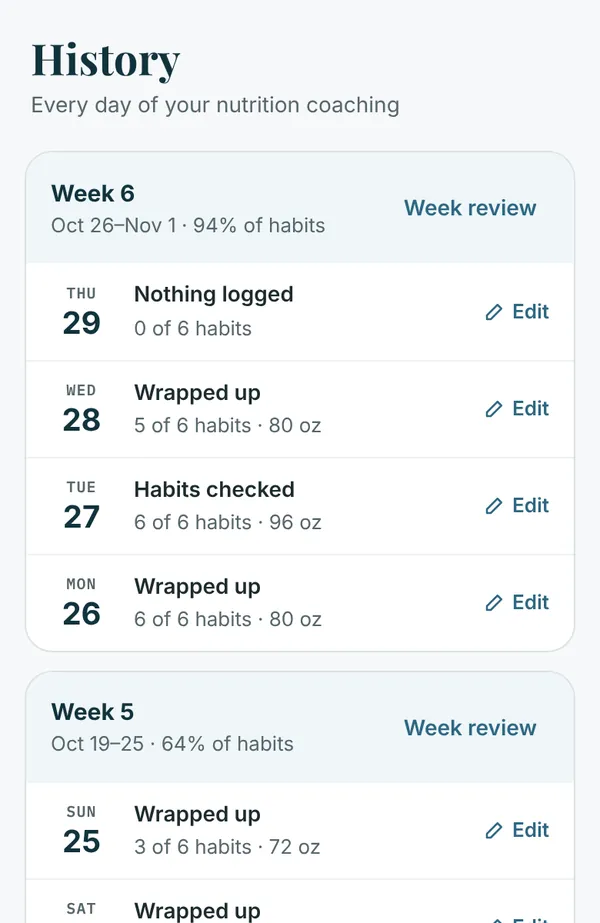
History lists every day of your nutrition coaching by week, with each week’s review. Tap Edit to fill in a day from the past week.
Your trends on Progress: weight by week
Nutrition history by week

Good to know

Quick answers

No signal at the gym?
Keep logging. Your sets are saved on your phone and sent once you’re back online.
Using a phone and a computer?
Sign in on both with the same email. Start a workout on one and Resume it on the other.
Signed out?
Sign in again with a new code. Nothing you logged is lost.
Can’t find the app icon?
Search your phone for RSN, or add it to your Home Screen again (see above).
Questions about your plan?
Tap the envelope to send RSN a note, or bring it to your next check-in call.
Something not working?
Email support@rsnfitness.com or text 402-214-0774 and say what you tapped and what happened. A screenshot helps.
Still stuck?Send RSN a note from the envelope on Today, email support@rsnfitness.com, or reach RSN at 402-214-0774 (text).